
Accounts Receivable (Beta)
The accounts receivable beta turns your invoices into proper receivables. Finalising an invoice posts it to the ledger, payments reduce what the customer owes rather than being coded to income, and Prosaic keeps track of part payments, overpayments, customer credit and refunds. This article explains what changes when the beta is switched on, and links to the detailed guides for each part.
Accounts receivable is in Beta. It's switched on one workspace at a time while we refine it. If something looks wrong or confusing, let us know through the 💬 button. Your feedback decides what we polish first.
- Getting the beta
- What changes when the beta is on
- Customer pages
- The Aged Receivables report
- GST on beta invoices
- Finalising in bulk and scheduling emails
- Current limits
The rest of the beta is covered in these guides:
- Recording customer payments (Beta): full payments, part payments, one payment for several invoices, and cash.
- Customer credit, overpayments and refunds (Beta)
- Recurring invoices (Beta)
- Invoice templates (Beta)
Getting the beta
The beta is switched on for a whole workspace by the Prosaic team. To join, message us with the 💬 button or email help@prosaic.works and tell us which workspace you'd like it on. Invoice templates have their own switch, so mention them too if you'd like to try them.
A few things to know:
- GST on beta invoices is worked out on the payments basis. If any of your clients file GST on the invoice or hybrid basis, read GST on beta invoices first.
- Invoices you finalised before the beta stay exactly as they are. See Invoices finalised before the beta.
What changes when the beta is on
Finalising posts the invoice to the ledger
When you finalise an invoice, Prosaic posts a journal dated on the invoice's issue date:
- Debit Accounts Receivable for the invoice total
- Credit each line's income account for the amount excluding GST
- Credit the GST account for the GST on each line
The sale is recorded when you invoice, not when the customer pays. To see the journal, open the invoice and select Actions → View journal. The journal itself can't be edited or voided. To change it, edit or void the invoice and Prosaic updates the journal for you.
Every invoice now needs a contact. The Recipient name field becomes Contact, and Prosaic asks you to select or create one before it will finalise.
Payments settle the invoice instead of being coded to income
When a customer pays, you match the bank transaction to the invoice in bank reconciliation, as you do today. With the beta on, the payment is posted as Debit Bank, Credit Accounts Receivable, because the invoice already recorded the sale. That's what makes part payments, one payment for several invoices, and overpayments possible. Recording customer payments (Beta) walks through each case.
Always match a customer's payment to their invoice. If the bank transaction is coded straight to an income account instead, by hand, by a rule or by Prosaic AI, the sale is counted twice: once by the invoice and again by the payment. If that happens, reverse the reconciliation and match the transaction to the invoice.
New statuses and the Amount due column
The invoice list gains an Amount due column, and the summary cards at the top count what's still owed after payments.
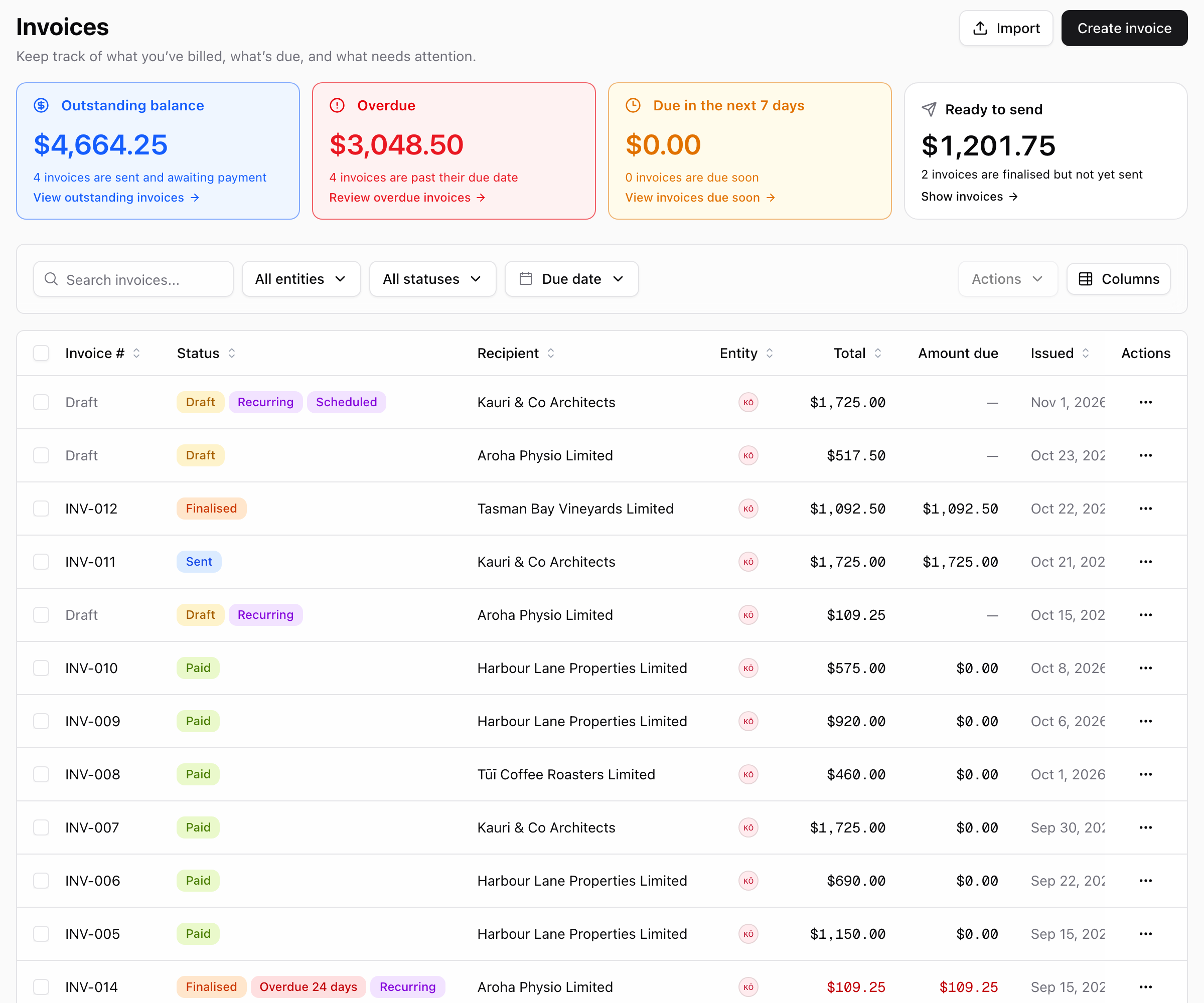
| Status | Meaning |
|---|---|
| Draft | Still being prepared. Nothing is posted. |
| Finalised | Posted to the ledger and numbered, but not sent yet. |
| Sent | Sent from Prosaic or marked as sent, with nothing paid yet. |
| Partially paid | Some money has been received and some is still owing. |
| Overdue | Shown beside the status when anything is still owing after the due date, with the number of days late. |
| Paid | Payments and credit cover the full total. |
| Voided | Cancelled. The journal is reversed on the invoice's own date. |
An invoice can carry more than one chip, for example Partially paid and Overdue 38 days:

Invoices finalised before the beta
Invoices finalised before the beta was switched on aren't in the ledger, and Prosaic leaves them that way. They work as they always have:
- They're settled by matching one bank transaction for the full amount. Part payments and paying several invoices with one transaction aren't available for them.
- Mark as paid is still available for them. Invoices finalised in the beta don't offer it, because their payments need to reach the ledger. Match a bank transaction or use Record payment instead.
- The Aged Receivables report lists them separately, under Not in the Ledger.
Editing and voiding an invoice that has payments
You can still correct a finalised invoice, including one that has been part paid or paid. If you change the lines, tax or issue date, Prosaic reverses the old journal and posts the corrected one. Payments stay matched. Before saving, a Change a paid invoice? dialog lists the payments and what you've changed. If GST from those payments is already in a filed return, it's corrected in your next return.
A few changes are blocked while payments are applied:
- The total can't go below what has already been paid.
- The issue date can't be later than the first payment.
- The customer can't change. Unapply the payments first (see Recording customer payments).
To void an invoice that has payments, select Void invoice. Prosaic warns you how much has been paid, and the button becomes Unmatch and void. The bank transactions go back to Unreconciled for you to code again.
Customer pages
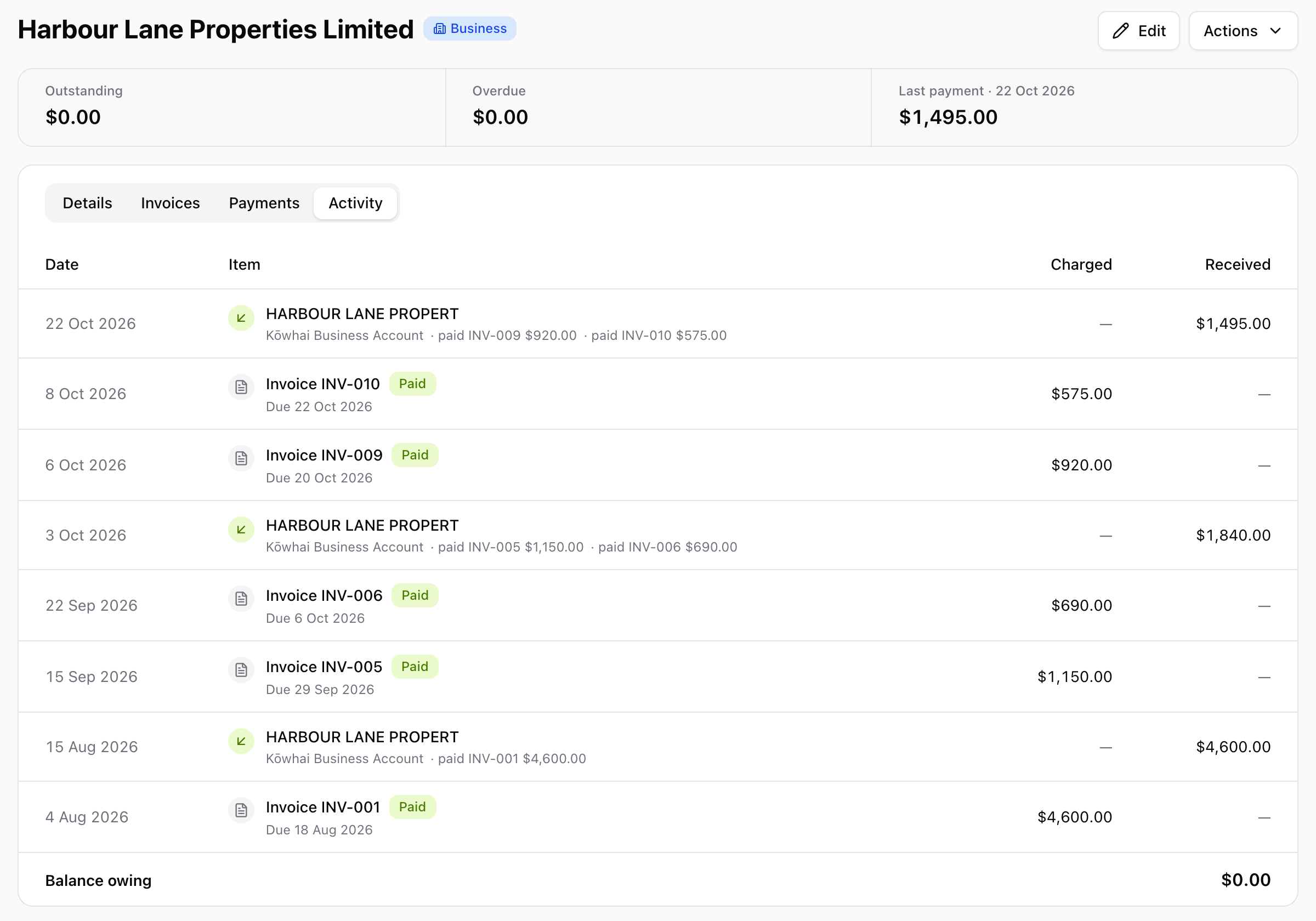
Open a contact from Workspace → Contacts. A strip at the top shows Outstanding, Overdue, Credit (when the customer has any) and Last payment. Below it are four tabs:
- Details: the contact record.
- Invoices: every invoice for the contact, with the amount due and an Apply credit button where credit can be used.
- Payments: each payment received, the invoices it paid, and any credit or refund.
- Activity: a statement of invoices, payments, credit and refunds, newest first, ending with the Balance owing.
The Aged Receivables report
Go to Reports → Aged Receivables, choose the entity and the As at Date, and tick Show invoices to list each invoice under its customer. Amounts are grouped into Current, 1–30 Days, 31–60 Days, 61–90 Days and Over 90 Days by due date (or issue date when there's no due date).
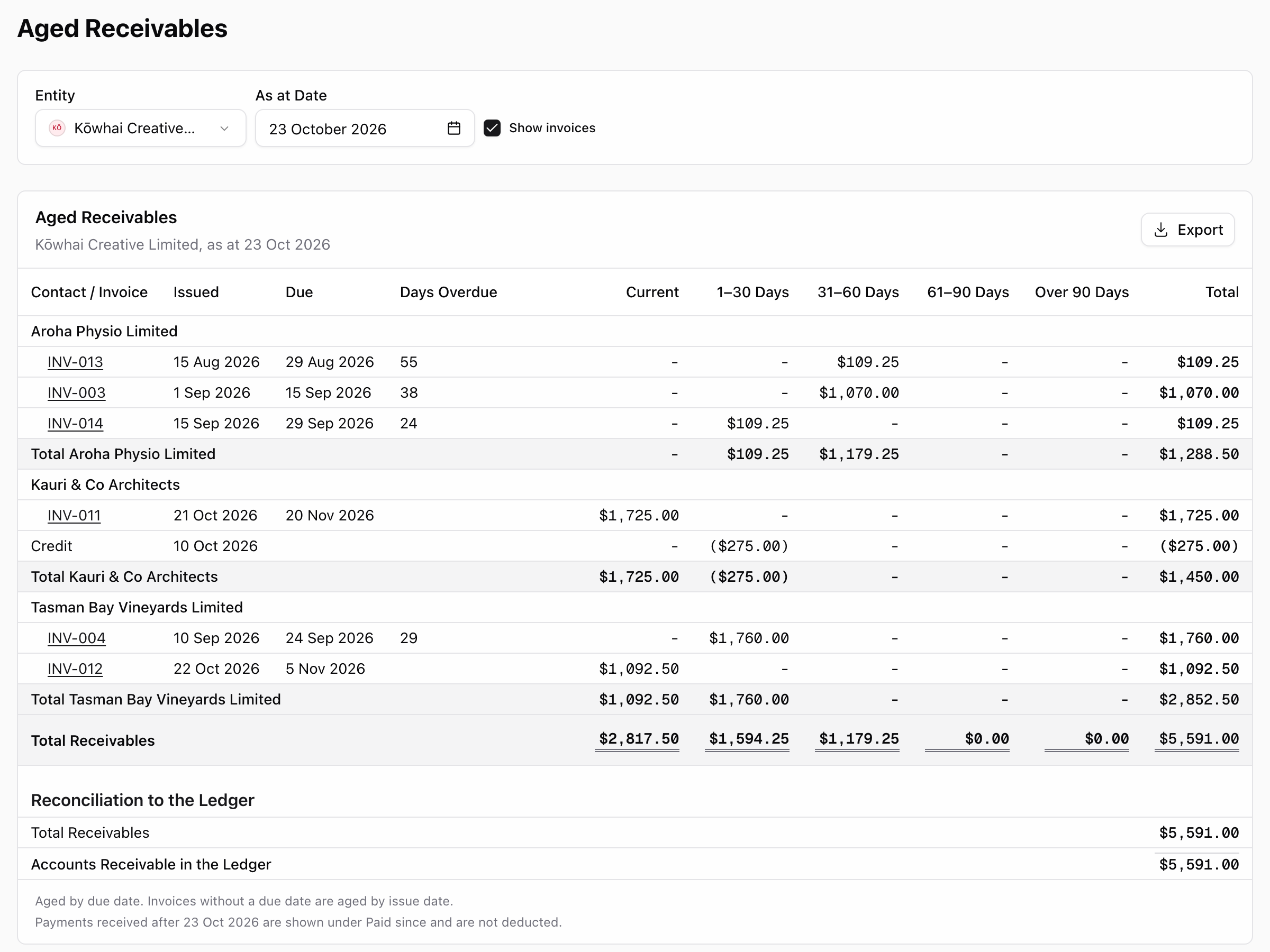
- Customer credit appears as a negative Credit row under the customer, aged from the day the money arrived.
- Payments received after the as-at date are shown under Paid Since and aren't deducted, so you can run the report for any past date.
- Reconciliation to the Ledger compares the report total with the Accounts Receivable balance in the ledger. An Unexplained Difference usually means something was posted to Accounts Receivable by a manual journal.
- Export downloads the report as CSV, PDF or Excel.
GST on beta invoices
Beta invoices are reported for GST on the payments basis. Finalising an invoice puts nothing in the GST return. Each payment brings in its share of the invoice's GST in the period the money arrives:
- A part payment brings in the same share of each line's GST. For example, $1,000 paid on a $2,070 invoice brings in $130.43 of its $270 GST. Across all the payments the cents add up exactly to the invoice's GST.
- Credit applied to an invoice counts in the period you apply it.
- An overpayment held as credit carries no GST, and refunding that credit doesn't affect GST.
- A payment matched into a period you've already filed, or unmatched after filing, lands in the next open return as a late claim. So does an edit to an invoice whose payments were already reported.
Invoice and hybrid basis aren't supported yet. If a client files GST on the invoice basis, their beta invoices will still be reported when paid. Talk to us before switching the beta on for a workspace with invoice-basis clients.
Finalising in bulk and scheduling emails
The beta adds two time-savers to the invoice list:
- Bulk finalise and send. Tick invoices, open Actions and choose Finalise or Send, up to 100 at a time. Each one gets its entity's next number. Any that can't be finalised or sent stay ticked, with the reason, so you can fix them.
- Schedule an email. In the send dialog, choose when it goes: Now, Tomorrow morning, Monday morning, or a date and hour on the entity's clock. Scheduling a draft finalises it straight away; only the email waits. The invoice shows Emailed automatically on… with a Don't send button. If Prosaic can't send it within 3 days of the time you picked, it holds it back and tells you why on the invoice.
Current limits
- New Zealand entities only.
- Sales invoices only. Bills and accounts payable are not available yet.
- Credit notes and write-offs are coming. Until then, an invoice's total can't be reduced below what has been paid.
- GST on the invoice and hybrid basis isn't supported yet (see above).
- The public API and MCP can match one payment to one invoice. Part payments across several invoices, credit and refunds are done in Prosaic.
Need help? Use the 💬 in-app help button to reach the Prosaic team, or email help@prosaic.works.