
Recording customer payments (Beta)
With the accounts receivable beta on, a customer's payment settles their invoice instead of being coded to income. You still do it in bank reconciliation, but now a payment can cover part of an invoice, several invoices at once, or more than is owed. This article covers matching payments from your bank feed, recording cash, and undoing a payment.
This is part of the accounts receivable Beta. Read Accounts receivable (Beta) for how to get it and what changes when it's on.
- Matching a payment to an invoice
- Part payments
- One payment for several invoices
- The Payments card on an invoice
- Recording a payment that won't reach the bank feed
- Unapplying or unmatching a payment
Matching a payment to an invoice
Go to Transactions and select the incoming bank transaction to open it. The Invoice section lists the open invoices it could pay:
- Prosaic suggests an invoice when the amount matches exactly what's owing and the payment arrived between a few days before the issue date and two weeks after the due date. A matching customer name on the bank line, or payment into the bank account the invoice nominated, ranks it higher. Each suggestion shows which of those checks passed.
- Search all outstanding invoices finds any open invoice for the entity by number or customer name, including ones outside the date window.
Tick an invoice to match it, check the summary, then select Reconcile. The invoice shows Paid once its payments cover the total. The grid shows the invoice number in place of an account, because the coding comes from the invoice: Debit Bank, Credit Accounts Receivable, with no GST on the bank line itself. GST is reported from the invoice's lines when the payment arrives.
Bulk Accept on the transactions grid reconciles suggested matches too, so a month of exact payments can be cleared in one go.
Part payments
Prosaic only suggests invoices whose amount owing matches the payment exactly, so for a part payment, find the invoice in the list or search for it, then tick it. The invoice takes the whole payment, up to what it owes, and the drawer tells you what's left:
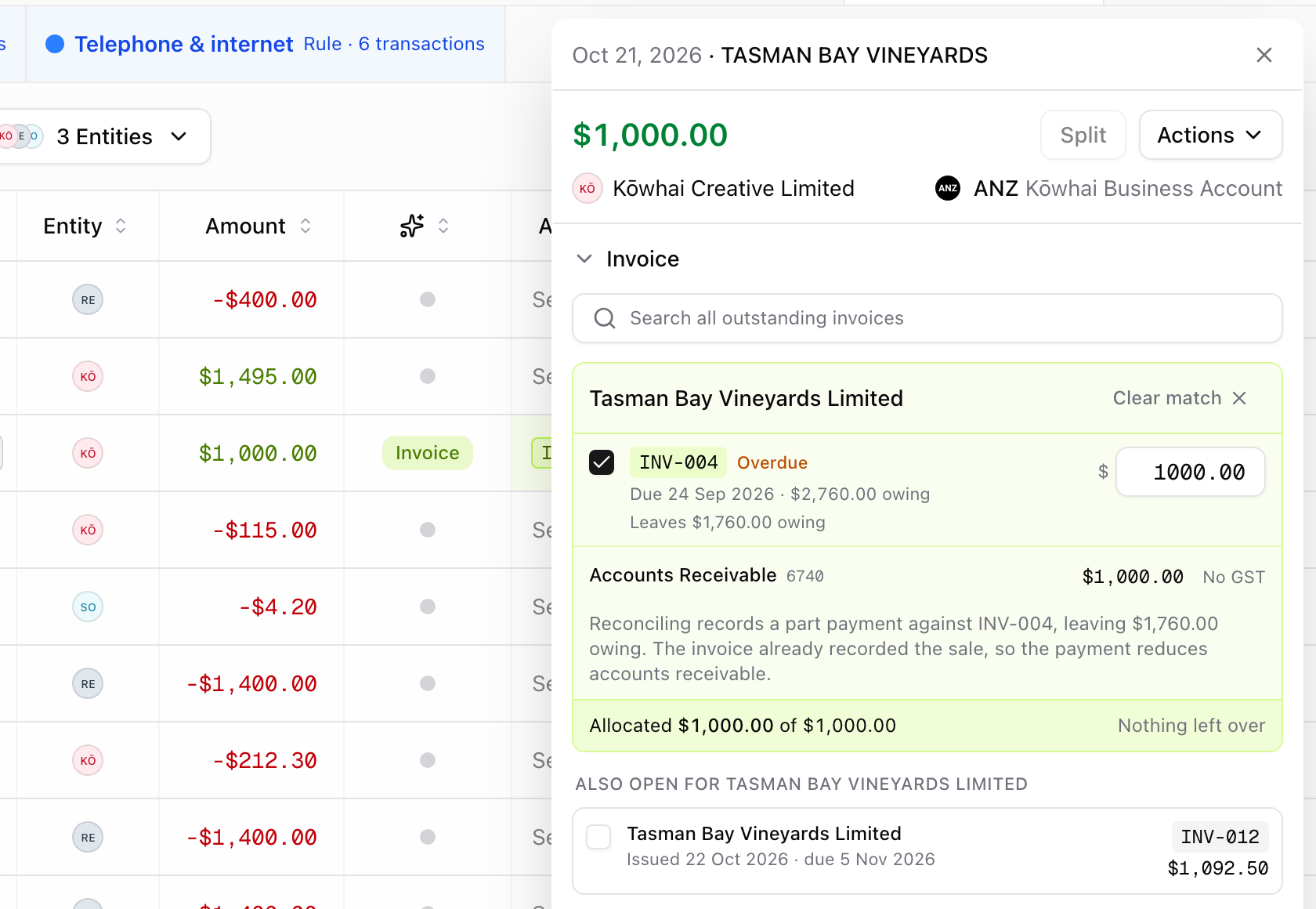
Here Tasman Bay Vineyards paid $1,000 towards a $2,760 invoice. Reconciling leaves $1,760 owing, and the invoice shows Partially paid. When the rest arrives, match that payment to the same invoice and it moves to Paid.
You can change the amount in the box beside the invoice if only part of the payment belongs to it.
One payment for several invoices
Customers often pay several invoices with one transfer. Tick the first invoice, and the list narrows to that customer's other open invoices under Also open for…. Tick each invoice the payment covers. Prosaic fills each one up to what it owes and shows the running total at the bottom:
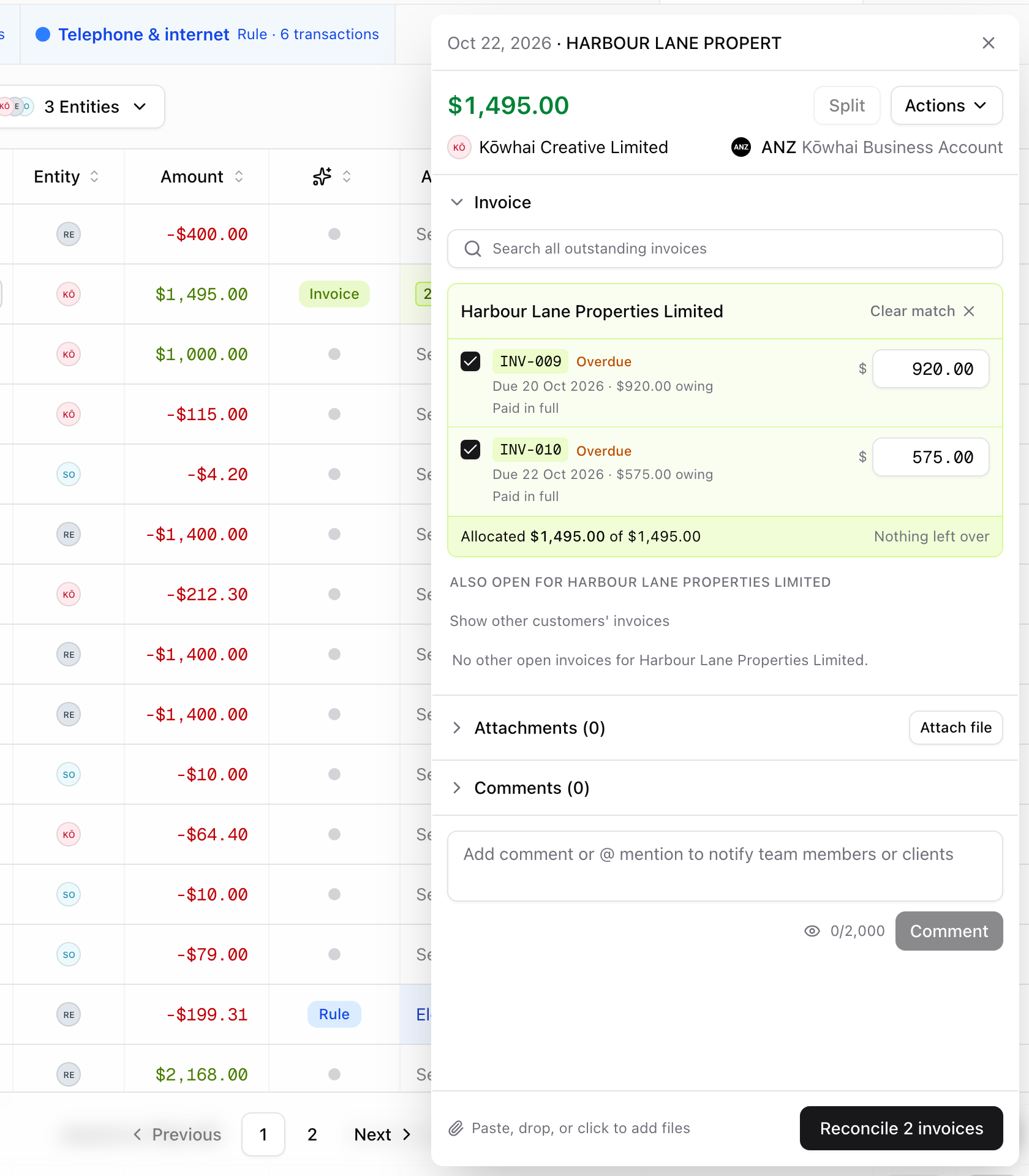
- Allocated $1,495.00 of $1,495.00 · Nothing left over means the payment is fully used. Select Reconcile 2 invoices.
- If the invoices take less than the payment, the rest is kept as the customer's credit. See Customer credit, overpayments and refunds (Beta).
- If they take more, Reconcile stays disabled until you lower an amount.
One payment can only pay one customer's invoices. Show other customers' invoices widens the list if you ticked the wrong customer first. Invoices finalised before the beta can only be matched on their own, for their full amount.
The Payments card on an invoice
Open a finalised invoice to see its Payments card below the line items. It lists every payment and credit applied, where the money was received, and the running Invoice total, Paid and Amount due.
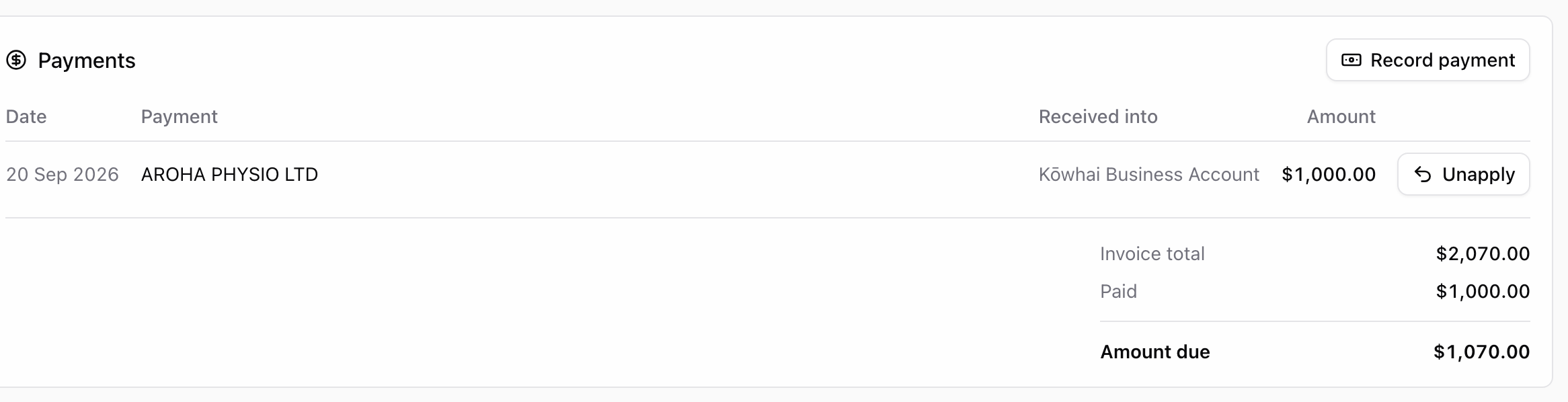
Select a payment to open its bank transaction. A payment that has been taken back stays listed, struck through with a Reversed badge, so the invoice keeps its full history. When the customer has paid more than the PDF shows, the PDF prints Less amount paid and Amount due under the total.
Recording a payment that won't reach the bank feed
For cash, or money paid into an account Prosaic doesn't have a feed for, open the invoice and select Record payment on the Payments card.
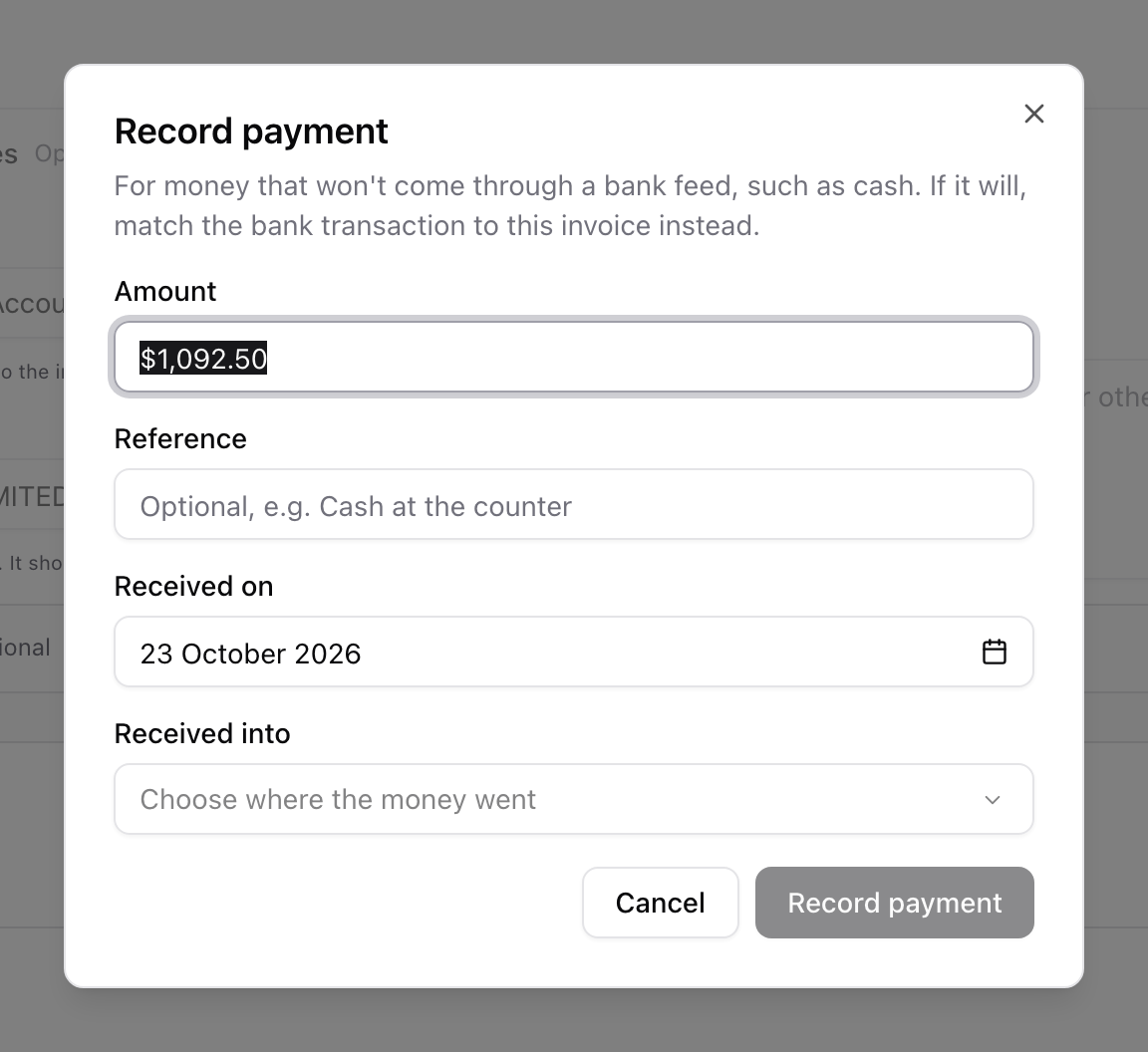
- Amount starts at the amount due. If you enter more, the extra is kept as the customer's credit.
- Reference is optional, for example Cash at the counter.
- Received on can't be in the future.
- Received into is the account the money went to, such as a cash or petty cash account.
If you choose an account that has a bank feed, Prosaic warns you. Wait for the payment to arrive in the feed and match it there, or it will be counted twice.
A recorded payment has a Delete button on the Payments card. Deleting it removes the payment as if it was never received, including any of it applied to other invoices.
Unapplying or unmatching a payment
There are two ways to take a payment back, depending on what was wrong:
| If… | Do this | What happens |
|---|---|---|
| The payment is right, but it went to the wrong invoice | Select Unapply on the invoice's Payments card | The money goes back to the customer's credit and the invoice's amount due goes up. The bank transaction stays reconciled. Apply the credit to the right invoice. |
| The bank transaction shouldn't have been matched to an invoice at all | Go to Transactions → Reconciled and select Reverse on the transaction | Every invoice the payment paid reopens, and the transaction goes back to Unreconciled. |
If part of the payment's credit has since been refunded, Prosaic asks you to unmatch the refund first, and links you to it.
Need help? Use the 💬 in-app help button to reach the Prosaic team, or email help@prosaic.works.