
Recurring Invoices (Beta)
Recurring invoices let you set up an invoice once and have Prosaic create it on a schedule: a monthly retainer, a quarterly service fee, an annual subscription. You choose whether each one waits as a draft for you to check, is finalised automatically, or is finalised and emailed to the customer. This article covers setting one up, what happens on each run, and managing them over time.
Recurring invoices are in Beta, as part of the accounts receivable beta. Read Accounts receivable (Beta) for how to get it. If something doesn't behave the way you expect, tell us through the 💬 button.
- Finding your recurring invoices
- Creating a recurring invoice
- What happens on each run
- Managing a recurring invoice
- When a recurring invoice needs attention
- Current limits
Finding your recurring invoices
Go to Invoices → Recurring. The list shows each customer, the next invoice date, its status and a short description of the schedule. Hover over a schedule to read it in full.
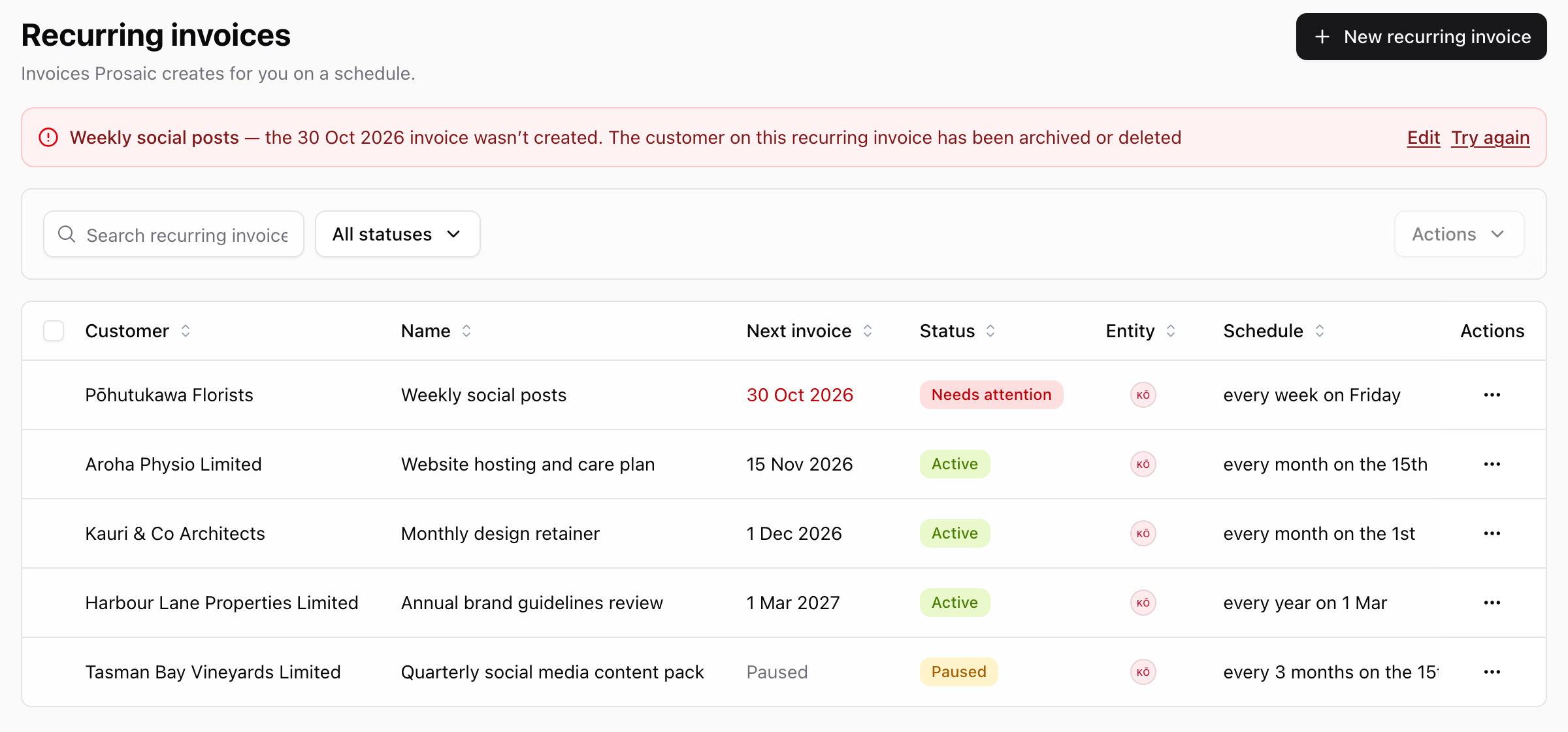
| Status | Meaning |
|---|---|
| Active | Creating invoices on schedule. |
| Paused | Skipping invoices until it's resumed, or until the date you chose. |
| Ended | Finished, either at its end date or because you ended it. |
| Needs attention | The last invoice couldn't be created. See When a recurring invoice needs attention. |
Invoices created by a recurring invoice carry a purple Recurring badge in Invoices → All Invoices. To see only those, choose From recurring invoices in the status filter.
Creating a recurring invoice
Select New recurring invoice. To start from an invoice you've already sent, open it and choose Actions → Make recurring: Prosaic copies the customer, lines, bank account and template, set to repeat monthly from today.
Step 1: Customer and schedule
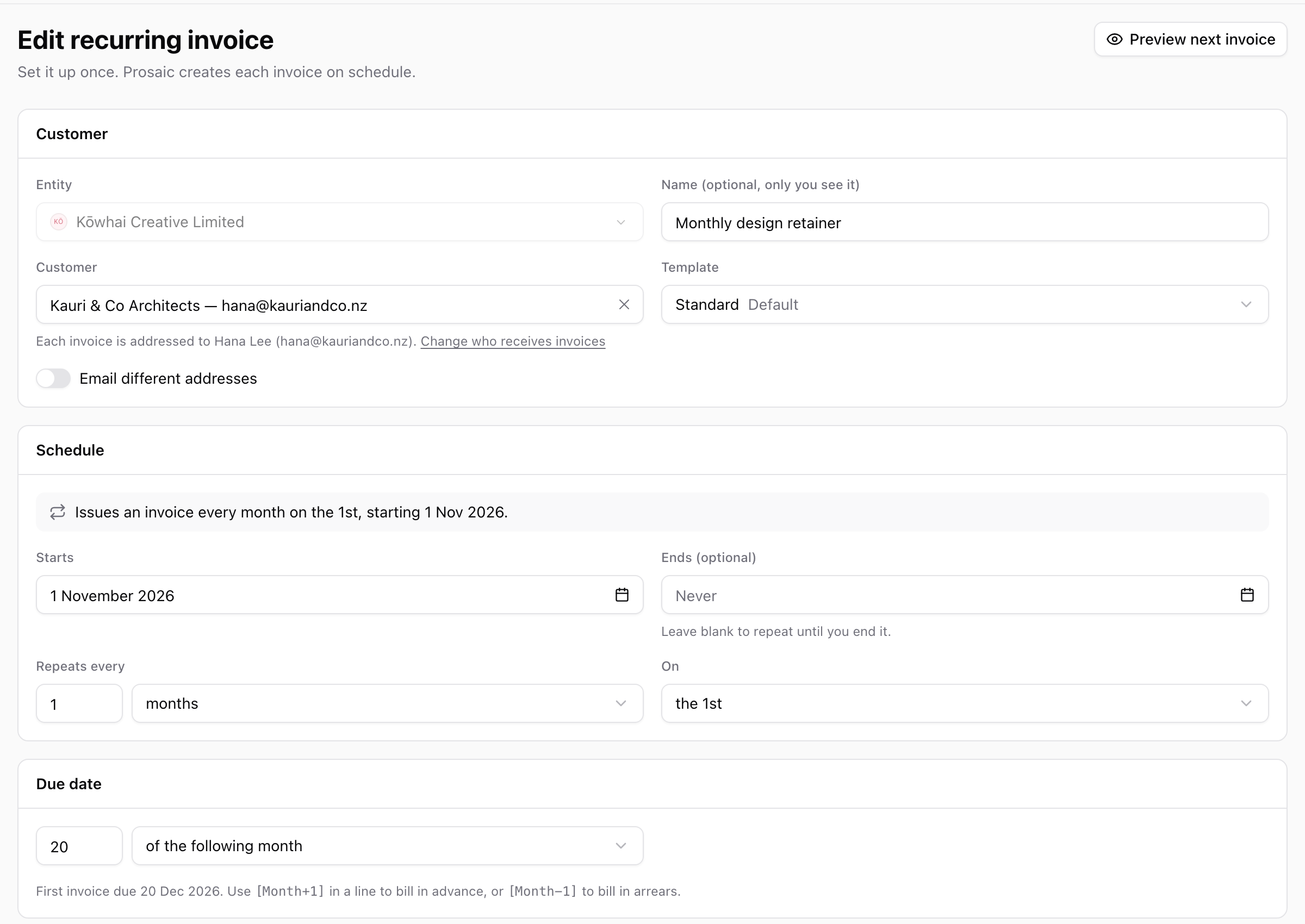
- Entity can't be changed after the recurring invoice is saved.
- Name is optional and only you see it, for example Monthly design retainer.
- Customer: each invoice is emailed to the people at the customer marked Receives invoices on their contact, read fresh on every run. Turn on Email different addresses to send to a fixed list instead.
- Template sets how the invoices print, when you use invoice templates.
- Starts, Repeats every (weeks, months or years) and, for monthly schedules, On: the same date, the last day of the month, or a weekday such as the first Monday. A 31st falls back to the last day in shorter months.
- Ends is optional. Leave it blank to repeat until you end it.
- Due date can be a number of days after the issue date or the end of the month, or a day of the same or following month, for example the 20th of the following month.
The sentence at the top of the Schedule section reads the schedule back to you, for example Issues an invoice every month on the 1st, starting 1 Nov 2026.
If the start date is in the past, Prosaic tells you how many earlier invoices it will create. They're created as drafts straight away and never emailed, whatever you choose in Step 2. Select Start from the next one instead if you don't want them.
Step 2: What happens on each run
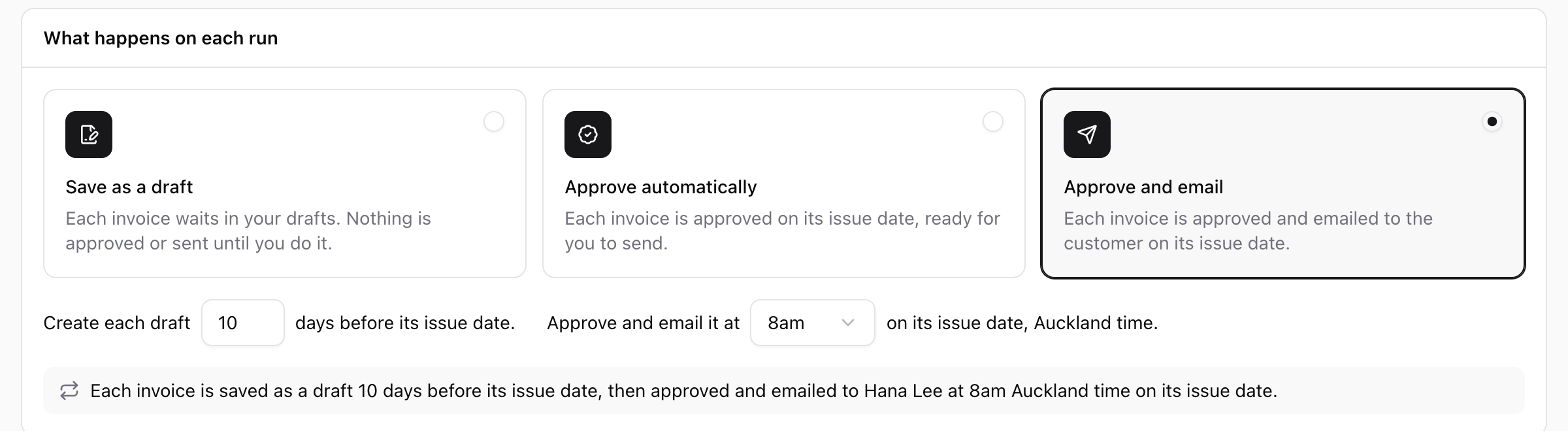
- Save as a draft: each invoice waits in your drafts. Nothing is finalised or sent until you do it.
- Finalise automatically: each invoice is finalised on its issue date, ready for you to send.
- Finalise and email: each invoice is finalised and emailed to the customer on its issue date.
Finalising automatically is the same as finalising an invoice by hand: it gets its number and is posted to the ledger.
Two settings shape the timing:
- Create each draft [N] days before its issue date gives you a review window, up to 60 days. The draft waits with a note saying when it will go out.
- Finalise it at (or Finalise and email it at) sets the hour on the issue date, on the entity's clock. The default is 8am, so customers aren't emailed at midnight.
The summary under the options says exactly what will happen and who will be emailed. If no one would receive the email, Prosaic tells you before you save.
Step 3: Line items and placeholders
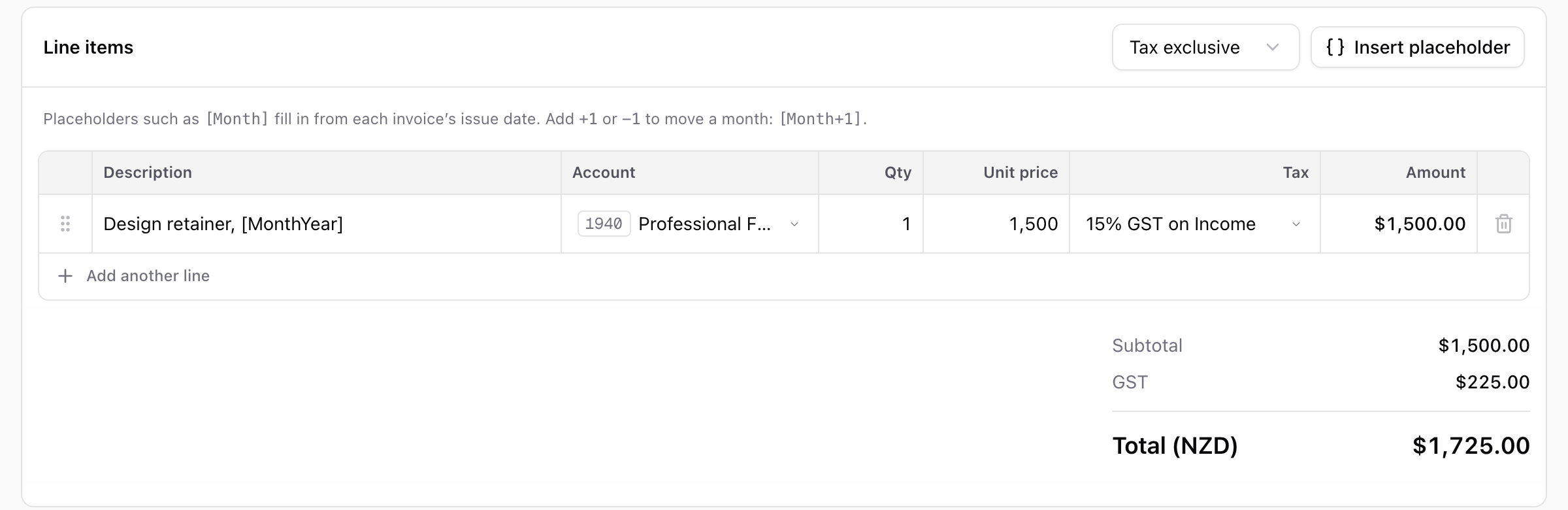
Add lines as you would on an invoice. Use Insert placeholder to drop in text that fills in from each invoice's issue date:
| Placeholder | On an invoice issued 1 Nov 2026 |
|---|---|
[Month] |
November |
[Year] |
2026 |
[MonthYear] |
November 2026 |
[Week] |
The week number, 44 |
[IssueDate] , [DueDate] |
The invoice's own dates |
Add +1 or -1 to move a month: [Month+1] bills in advance, [Month-1] bills in arrears. Placeholders work in notes too. Preview first invoice at the top of the page shows the first invoice with everything filled in.
Select Create. If an invoice is already due, Prosaic creates it straight away.
What happens on each run
Prosaic checks recurring invoices every hour. Shortly after midnight on the entity's clock, on the issue date (or earlier, if you chose to create drafts early), it creates the invoice as a draft:
- It's addressed to the customer, with the lines, bank account and template from the recurring invoice, and placeholders filled in.
- Tax rates are taken from the tax codes at that moment, so a rate change flows into future invoices.
- Drafts have no number. The number is assigned when the invoice is finalised, automatically or by you.
If you chose to finalise or email automatically, the draft shows when that will happen. Select Don't send automatically (or Don't finalise automatically) to keep this one as a draft. Finalising it yourself also cancels the automatic step.

Prosaic keeps an invoice as a draft, rather than finalising or sending it, when:
- it couldn't go out within 3 days of its issue date, so a customer is never sent a stale invoice without you seeing it first;
- the customer has credit to apply first, so you can apply it before the invoice goes out;
- no one is set to receive it by email;
- the person who set it up no longer has access to the entity.
The reason is shown on the draft. Review it, then finalise and send it yourself.
Managing a recurring invoice
Select a recurring invoice to open it. The page shows the schedule, the next due date, what each invoice costs, the line items, every invoice it has created, its history, and the next three upcoming invoices.
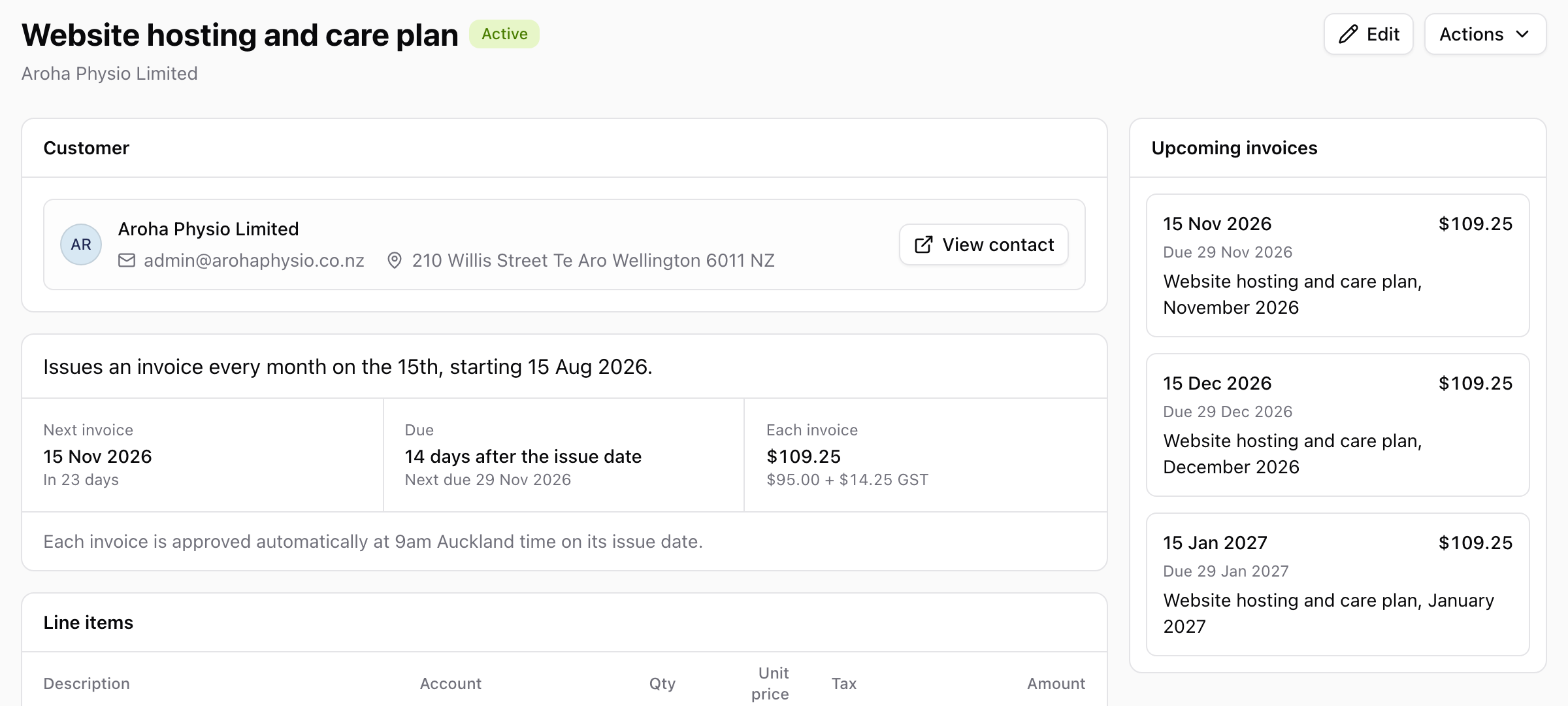
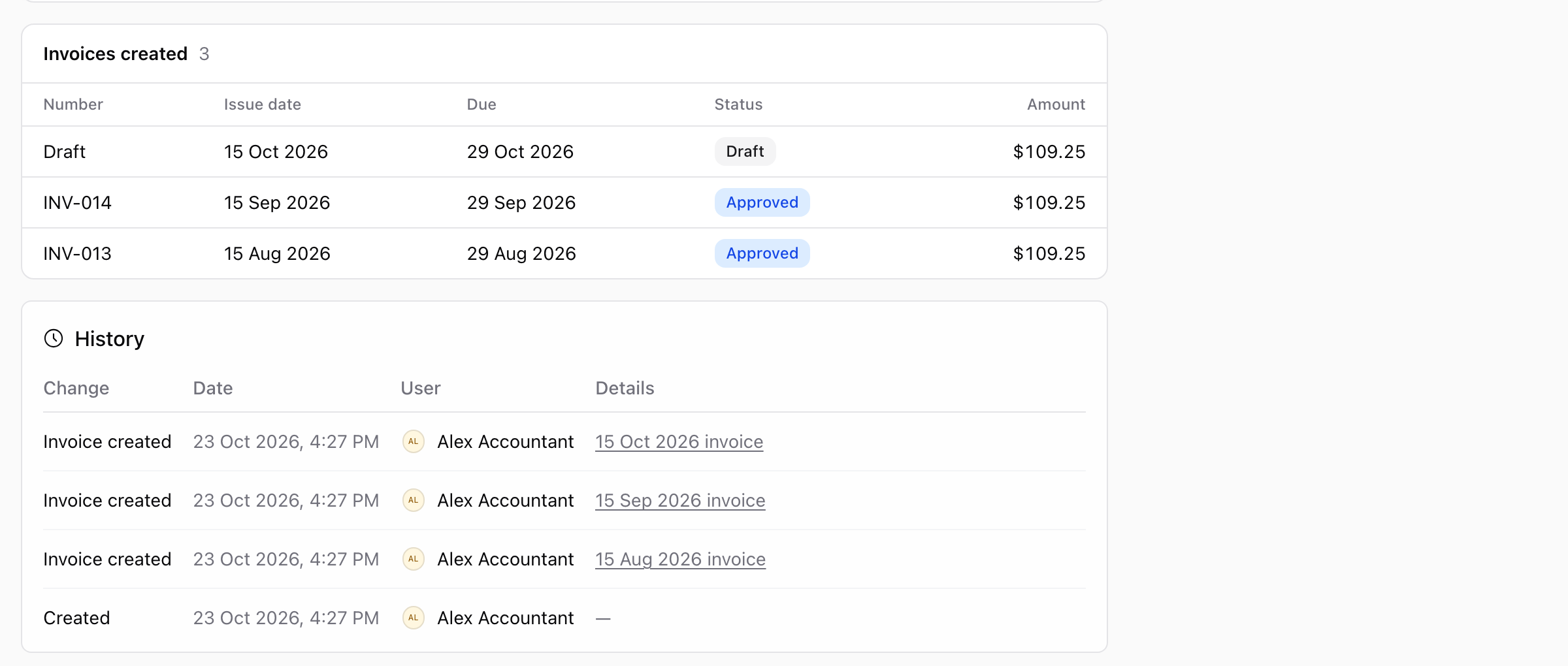
- Edit changes invoices that haven't been created yet. Drafts already created keep their content. A schedule change never moves the next invoice earlier than it already was.
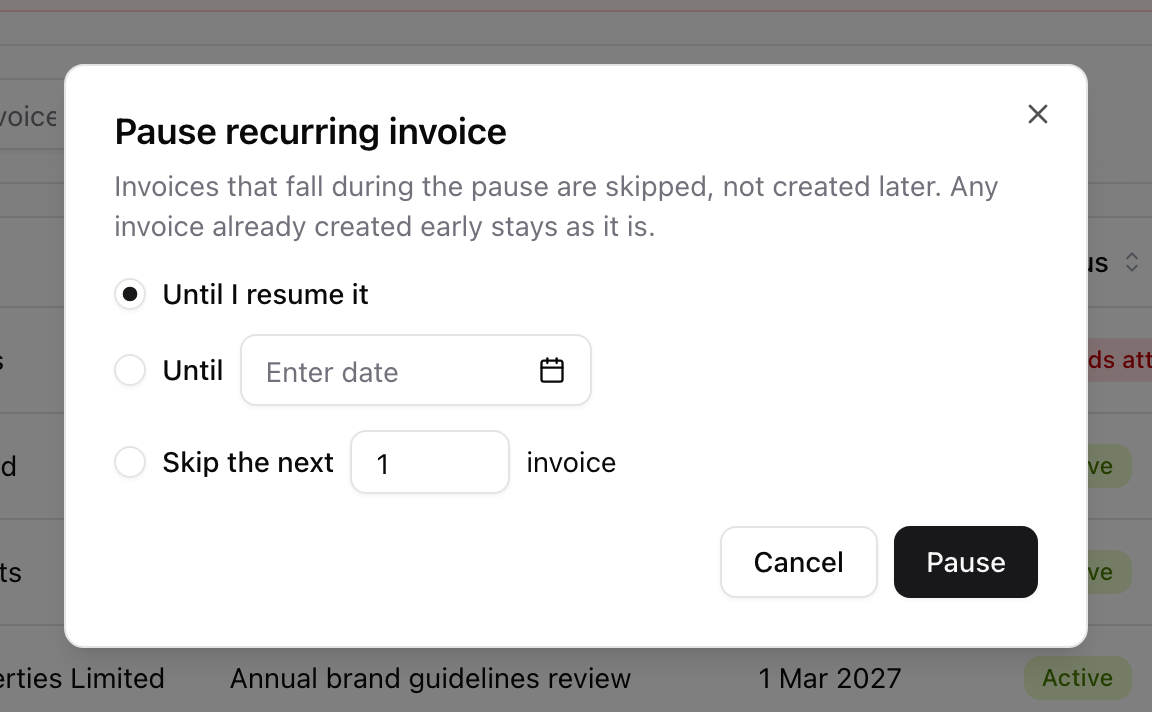
- Pause (from Actions or the list's ⋯ menu) skips invoices until you resume it, until a date, or for the next few invoices. Skipped invoices are never created later. Any draft already created early stays, but its automatic finalise or email is cancelled.
- Resume picks up from the next date on or after today, and creates it straight away if it's already due.
- End stops it creating invoices. It stays in your list as Ended and can be restarted by editing it to end later.
- Delete stops it and removes it from your list.
Invoices already created always stay, whatever you do to the recurring invoice. To pause or resume several at once, tick them in the list and use Actions.
When a recurring invoice needs attention
If Prosaic can't create an invoice, the recurring invoice shows Needs attention, a red strip appears at the top of the list, and its page explains what went wrong:
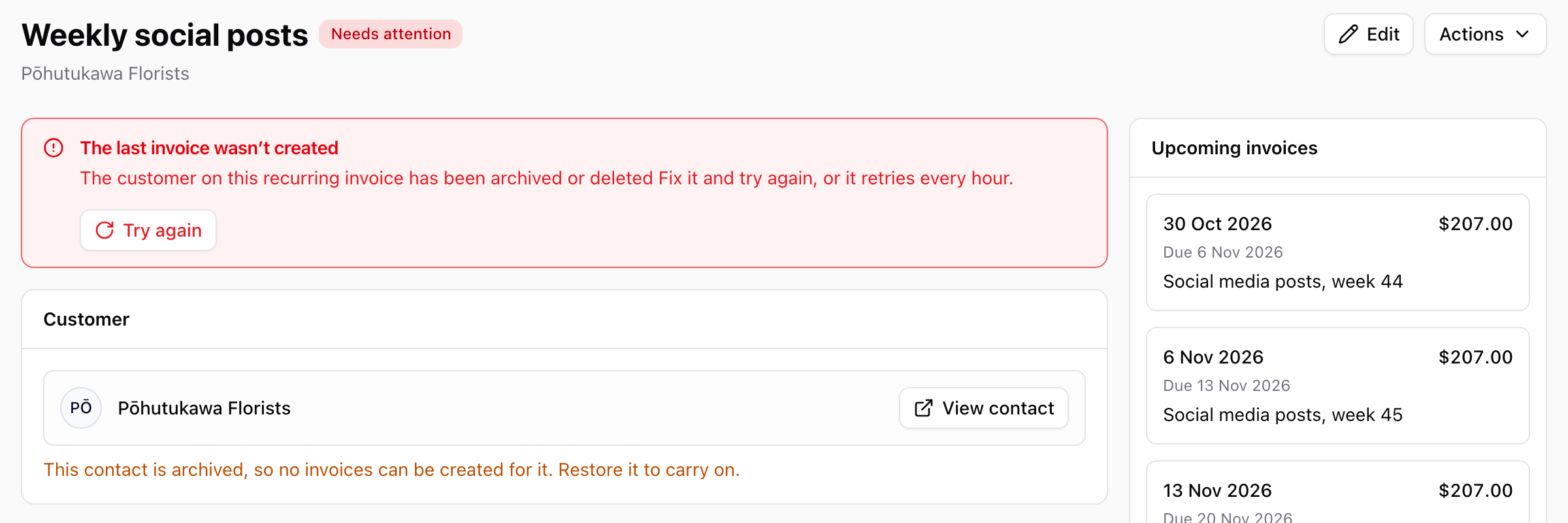
The most common causes are an archived customer, or an account, tax code, template or bank account that no longer exists. Fix the cause, for example restore the contact or edit the recurring invoice, then select Try again. Prosaic also retries every hour by itself.
Prosaic doesn't email you when a draft is created or a run fails yet. Check Invoices → Recurring for anything marked Needs attention, and your drafts for invoices waiting for review. Tell us via 💬 what notifications would help you.
Current limits
- Schedules repeat weekly, monthly or yearly. Daily schedules aren't available.
- When catching up a past start date, Prosaic creates up to 12 invoices per hourly run.
- Sales invoices only. Recurring bills will follow accounts payable.
- Recurring invoices can't be managed through the public API or Prosaic AI yet.
Need help? Use the 💬 in-app help button to reach the Prosaic team, or email help@prosaic.works.