
Converting chart of accounts templates into Prosaic
Getting started with Prosaic is fast and easy. Simply invite clients to connect their bank accounts, then start reviewing and coding transactions.
As you bring more clients across, we recommend setting up your practice chart templates. If you already use a standard chart, such as the Xero NZ master template, a MYOB standard account list or your own house chart, this Claude skill helps you convert it into a reusable Prosaic template.
It reads the source chart, matches each account to Prosaic’s global account library, and provides a mapping for you to review before anything is created.
You only need to do this once for each chart template. The finished template can then be applied to any suitable client entity.
AI Skills are reusable sets of instructions that help Claude or ChatGPT complete specific tasks consistently. As you use a skill, you can update and improve it to reflect your firm’s own processes, preferences and ways of working.
Download the skill (4 files, about 28 KB).
In this article
- What it does
- Installing it
- Using it
- Reviewing the mapping
- Things worth knowing
- When to use something else
What it does
- Reads a Xero chart of accounts export, a MYOB account list, or any CSV or XLSX chart with a code and a name column.
- Matches each source account to the closest account in Prosaic's global library, respecting account class so an expense never lands on an income account.
- Collapses repeated blocks, such as Shareholder 1 through 5, Term Loan 1 through 4, intercompany accounts and bank accounts, into a single Prosaic account with numbered subcodes.
- Records each source code against the Prosaic account as its mapped code, so trial balance and transaction imports know where the balances go later.
- Produces a mapping spreadsheet for you to check, and only creates the template once you approve it.
Prosaic templates are assembled from the global account library rather than invented, so every top-level account in the finished template is a Prosaic global account. Anything your source chart has that the library doesn't becomes a child account under the nearest global parent.
Installing it
- Download the zip above and unzip it.
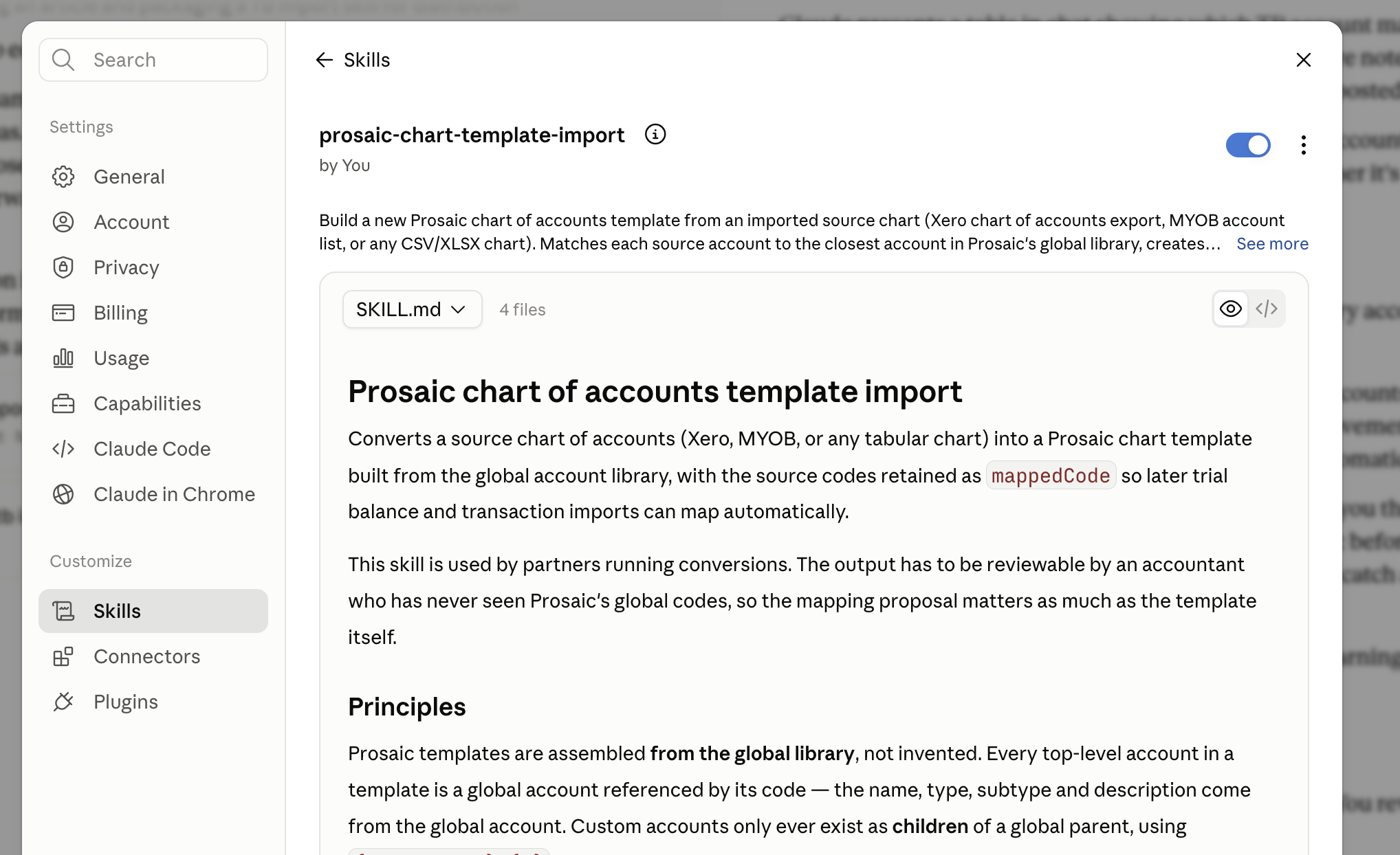
- In Claude, go to Settings → Capabilities → Skills and upload the
prosaic-chart-template-importfolder. - Make sure the Prosaic connector is enabled in your chat. See Connecting Prosaic to AI Assistants if you haven't set that up yet.
Using it
Attach your source chart and ask for what you want, in plain language:
Here's the Xero NZ master chart template we work from. Build me a Prosaic company template from it.
Claude reads the chart, pulls the global account library from your workspace, and comes back with a mapping proposal: a summary in the chat plus a CSV you can open in Excel. The CSV has one row per source account, showing the Prosaic code it's been matched to, the parent account where a subcode has been created, and a confidence flag.
If your practice already has a Prosaic template you're happy with, say so. Claude will read the existing template first and follow the conventions you've already established, rather than inventing a second house style.
Most practices end up with a small set of templates, typically one per entity type. Convert the source chart for each one, and give each template a name that says where it came from, for example "Company Annual (from Xero NZ master)".
Reviewing the mapping
Review the mapping before you approve it. Nothing is created in Prosaic until you do, and this is the step that decides how every client on the template will report.
Each row is flagged high, medium or low confidence:
- High is an exact or near-exact match. These generally pass without comment.
- Medium is a synonym or a judgement call about which parent an account belongs under.
- Low means there was no clear Prosaic equivalent, so Claude has parked the account under the nearest sensible parent for you to retarget. Every low-confidence row is listed individually in the chat summary, so you don't have to hunt for them in the CSV.
Reply with any changes in plain language, for example "move Client Disbursements to 3180" or "drop the spare shareholder block", and Claude will adjust and re-present the proposal.
Once you approve, Claude creates the template, adds the required system accounts, and reads the result back to confirm the account count, the subcode structure and the mapped codes.
[SCREENSHOT: the mapping CSV open in Excel, showing the Source Code, Prosaic Code, Parent Code and Confidence columns with a low-confidence row visible]
Things worth knowing
Repeated blocks become subcodes
A Xero master chart with six shareholder blocks of eight accounts each becomes one Shareholder Drawings account with 48 children, numbered in the same order as the source chart so it still reads the way your source chart does. This is the biggest structural difference between the two systems and where most of the judgement sits, so it's worth a close look in the proposal.
Spare blocks are kept on purpose
Master charts often carry an unused spare block, such as "Shareholder (Spare)". Because the template gets reused across many entities, the spare is usually the point, so it's carried over rather than stripped out. It's called out in the proposal, so say if you'd rather drop it.
Tax codes are defaults, not rules
The template carries the tax treatment across from the source chart, but each entity's own settings determine what's actually presented when reconciling or journalling. You don't need separate GST and non-GST templates.
Nothing is dropped silently
Anything the skill decides not to carry over, such as header-only rows from MYOB or Xero's tracking account, is listed in the proposal with the reason.
System accounts are added for you
GST, Historical Adjustment, Rounding, Transfers, Retained Earnings and Current Year Earnings are added automatically, whether or not the source chart had an equivalent.
Fixing things afterwards is safe
If you spot something once the template is live, ask Claude to change that one account. It edits individual accounts rather than replacing the whole chart, so nothing else in the template is disturbed.
The source code is kept against each Prosaic account as its mapped code. That's what lets a trial balance import match on the original codes when you convert each client, and what lets you export back out in those codes later. See Exporting client data to another ledger.
When to use something else
This builds the template. It doesn't bring any balances across, and it isn't run per client.
Once the template exists, apply it to an entity and adjust for that client by editing the template's sub-accounts or adding entity-specific child accounts. Then bring the balances in with the trial balance import skill, which reads the mapped codes this skill recorded and uses them to match the trial balance lines. The full sequence is in Migrating a client from Xero to Prosaic, and Chart of Accounts Templates covers how templates work generally.
Need help?
If the mapping isn't landing the way you'd expect for a particular source chart, we'd like to see it. Use the 💬 button in the app or email help@prosaic.works.