
Migrating a client from Xero to Prosaic
Moving a client from Xero into Prosaic is a trial balance exercise rather than a data sync. There's no Xero connection to switch on, so you pick a date to change over, bring the closing position across as an opening journal, and reconcile forward from there. For most clients it's a job of minutes once you've done one.
In this article
- Two ways to do this
- Before you start
- Step 1: Pick a conversion date
- Step 2: Set up your chart template, then the entity
- Step 3: Connect the bank accounts
- Step 4: Bring the balances across
- Step 5: Bring across the fixed asset register
- Step 6: Check it ties
- Step 7: Reconcile forward
- What stays in Xero
Two ways to do this
Most firms moving a client to Prosaic are winding Xero down, but there are two pathways and it's worth deciding which one you're on before you touch anything. The difference is whether the Xero subscription stays live.
Keep Xero, run Prosaic alongside it
Xero stays the ledger and keeps the full general ledger history. Prosaic takes over the day-to-day work:
- Connect the bank feeds in Prosaic and reconcile there.
- Prepare and file GST from Prosaic.
- At year end, export a trial balance from Prosaic and post it into Xero as a journal.
This suits a client whose history you want to keep queryable in Xero, or where something else in the Xero file is still in use. The year-end handover is the External Ledger export on the Prosaic trial balance, which produces a Xero journal CSV. See Exporting client data to another ledger.
Switch off Xero
Prosaic becomes the ledger and the Xero subscription is cancelled. Migrate in this order:
- Chart of accounts.
- Trial balance, as the opening journal.
- Fixed asset register.
- Export the full general ledger from Xero to Excel and store it as an offline backup.
Take the general ledger export before the subscription lapses. Once the Xero file is gone, so is your ability to pull the detail behind the opening balances, and it's the one thing you can't recreate from Prosaic.
Before you start
You'll need three things out of Xero:
- A trial balance as at the conversion date, exported as a spreadsheet.
- The client's fixed asset register, exported as CSV. Prosaic reads Xero's export directly.
- The client's chart of accounts, if you want to keep their Xero codes.
Keep the Xero file open until the client's first period is reconciled and tied. You'll want it for checking.
Step 1: Pick a conversion date
The cleanest conversion date is the end of a financial year, so Prosaic holds a full year and Xero holds the years before it. The end of a completed GST period is the next best option if the client can't wait for year end.
Avoid converting mid-GST-period. You'd end up preparing one return from two systems.
Step 2: Set up your chart template, then the entity
You can get up and running with a few clients quickly, then as you start to migrate more clients it's a good idea to set up your firm's chart templates before you convert clients. It's the single biggest thing that speeds conversions up: once the template is right, every client after that is "apply the template" rather than "build a chart", and your reporting stays consistent across the whole practice.
A template that's ready to convert against has:
- Consistent accounts across the firm, so a report for one client reads the same as a report for another, and your team doesn't have to relearn a chart per client.
- Mapped codes filled in. These translate your accounts into another system's codes, which is what lets you import a trial balance by its original codes and export back out the same way later. If you're keeping Xero's codes anywhere in your process, this is where they belong, rather than renaming your own accounts to match.
- Sub-accounts where clients commonly need a breakdown, for example Shareholder 1 and Shareholder 2 under the shareholder current account.
See Chart of Accounts Templates for how to build and maintain them.
If you already have a standard chart your practice works from, such as the Xero NZ master template or your own house chart, you can hand the conversion to Claude. It matches each account to Prosaic's global library, collapses repeated blocks like Shareholder 1 to 5 into subcodes, and gives you a mapping to review before the template is created. It's a once-per-template job, not once per client. See Converting chart of accounts templates into Prosaic with Claude.
Create the entity
Create the entity in Prosaic and set its conversion date to the day the client's Prosaic history begins. Prosaic uses that date to decide which transactions to show for reconciliation and which to include in the statement balance, so it matters that it's right.
Then apply your chart template to the entity.
Customise the chart for the client
With the template applied, adjust only what's specific to this client. There are two ways, and which one you use depends on whether the template already anticipated the need:
- Edit the template's sub-accounts. Where the template ships a numbered breakdown, such as Shareholder 1 and Shareholder 2, rename them to the actual names for this client.
- Create entity-specific child accounts. For something only this client needs, add a child account on the entity's own chart. Child codes hang off the parent, so a child of
2200is coded2200.1,2200.2and so on. These exist on the entity only and don't change the firm template or any other client.
Putting client-specific detail into child accounts, rather than adding one-off top-level accounts, is what keeps reporting comparable across the practice. The parent still rolls everything up, so firm-wide reports stay clean.
Step 3: Connect the bank accounts
Connect the client's bank accounts and assign each one to the entity. Feeds generally bring in a period of history, so you may find transactions arriving from before the conversion date. That's expected, and Prosaic keeps them out of the way: anything dated before the conversion date is excluded from the unreconciled screen and from the statement balance.
If a bank isn't available for a live feed, import statements manually instead. See How do I import bank transactions manually for a client?
Step 4: Bring the balances across
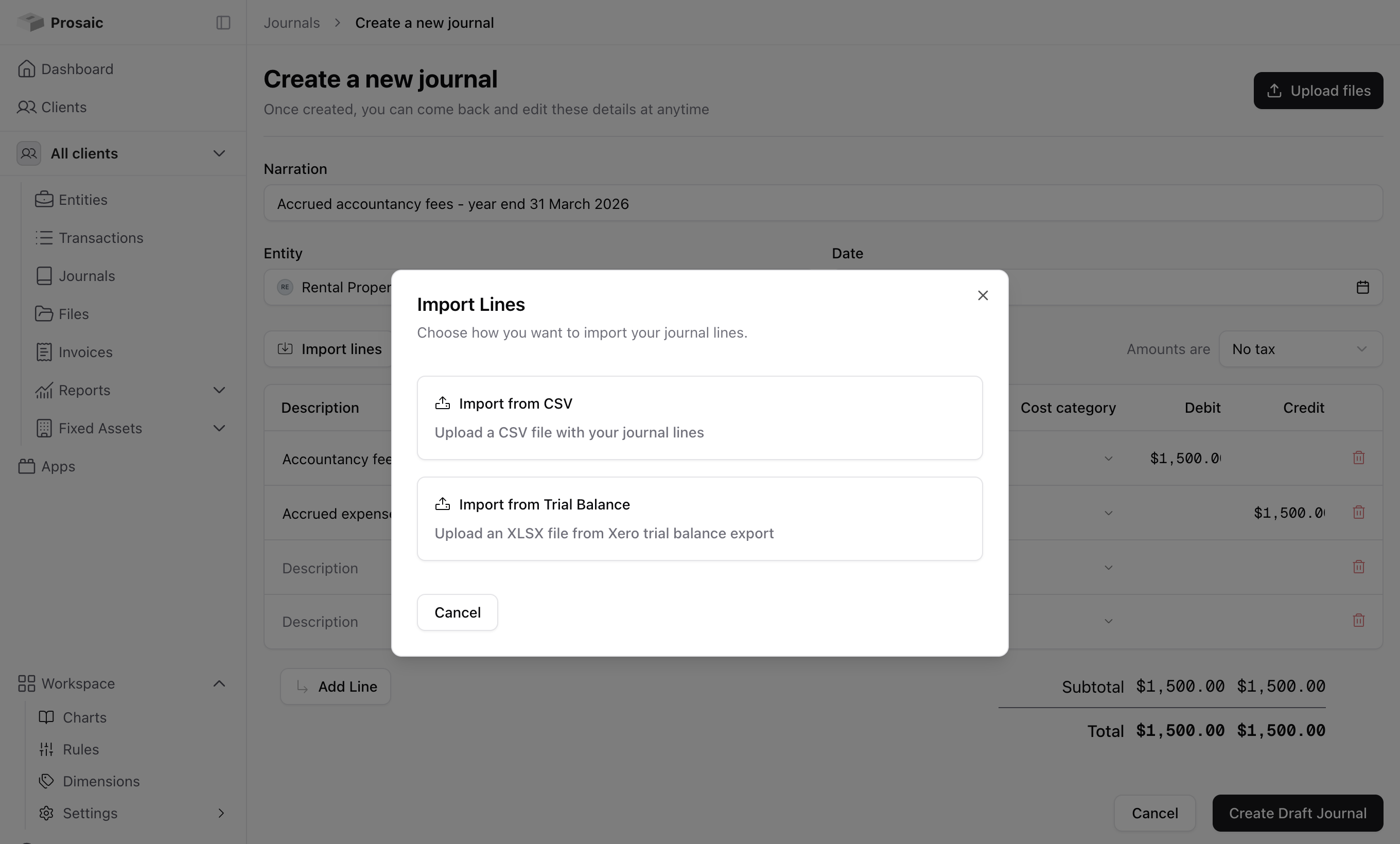
The Xero closing trial balance comes into Prosaic as a single opening journal.
- Go to Journals → New Journal.
- Date it at the conversion date and describe it clearly, for example "Opening balances from Xero as at 31 March 2026".
- Choose Import lines, then Import from Trial Balance and upload the Xero export. You can also use Import from CSV with the columns
Description,Account Code,Tax Rate,Credit,Debit. - Tick Use mapped codes from the account template if the file carries Xero's codes rather than yours.
- Review the matched lines. Fix anything that didn't match before importing.
- Check the journal balances, then post it.
Watch the tax rates on the opening journal. Opening balances shouldn't carry GST, so leaving default rates in place will pull the conversion into the client's first GST return.
Step 5: Bring across the fixed asset register
The fixed asset register comes across as a CSV, and Prosaic reads Xero's own export format, so in most cases you can upload the file straight from Xero without reshaping it.
Go to Fixed Assets → Import. If you'd rather build the file by hand, download the Prosaic template from that page. Its columns are Asset Name, Asset Number, Description, Purchase Date, Purchase Price, Depreciation Start Date, Cost Limit, Residual Value, Depreciation Method, Depreciation Rate (%), Useful Life (Years), Opening Accumulated Depreciation and Asset Type.
A few things to know before you upload:
- Assets arrive in draft. Review and complete any missing information, then activate them individually or select several assets and use Bulk actions → Activate. The more fields you supply, the less there is to complete at activation.
- Supported depreciation methods are straight line, diminishing value and no depreciation. Full depreciation at purchase isn't supported yet.
- If you supply an Asset Type, it has to be one that already exists in the entity. Set your asset types up first. See Setting Up Asset Types.
- For any asset whose depreciation started in an earlier financial year, include the Opening Accumulated Depreciation. Without it the register won't agree to the balance sheet.
- Asset numbers, if you use them, need to be unique within the entity.
The conversion journal brings the cost and accumulated depreciation balances into the ledger. The CSV brings the asset-by-asset detail into the register. You need both, and the register should agree back to the balance sheet when you're finished.

Step 6: Check it ties
Run the Trial Balance in Prosaic as at the conversion date and compare it line by line with the Xero trial balance you started from. They should agree exactly.
Then check each bank account's statement balance against the real bank statement at the conversion date. If one is out, the usual causes are a missing opening balance for that account or a journal posted to the wrong date. See Bank Accounts – Opening Balance, Conversion Dates and Statement Balance.
Step 7: Reconcile forward
From here it's ordinary Prosaic. Reconcile from the conversion date onwards, and set up rules for the client's recurring transactions so the coding largely looks after itself. See Bank Rec & Bulk Cash Coding and Rules.
Need help?
We're happy to walk through a first conversion with you. Use the 💬 button in the app or email help@prosaic.works.