
Contacts
Contacts stores the people and businesses you invoice, so you can reuse their details and see their linked invoices in one place. Save invoice recipients, postal addresses and payment wording, then choose the contact when creating an invoice.
Open Contacts from the main navigation. Contacts is available to firm staff and standard users with access to the relevant entity. Users with the restricted Client portal role do not have access.
- Finding your contacts
- Creating and editing a contact
- People and invoice recipients
- Using contacts with invoices
- Archiving, restoring and deleting
Finding your contacts
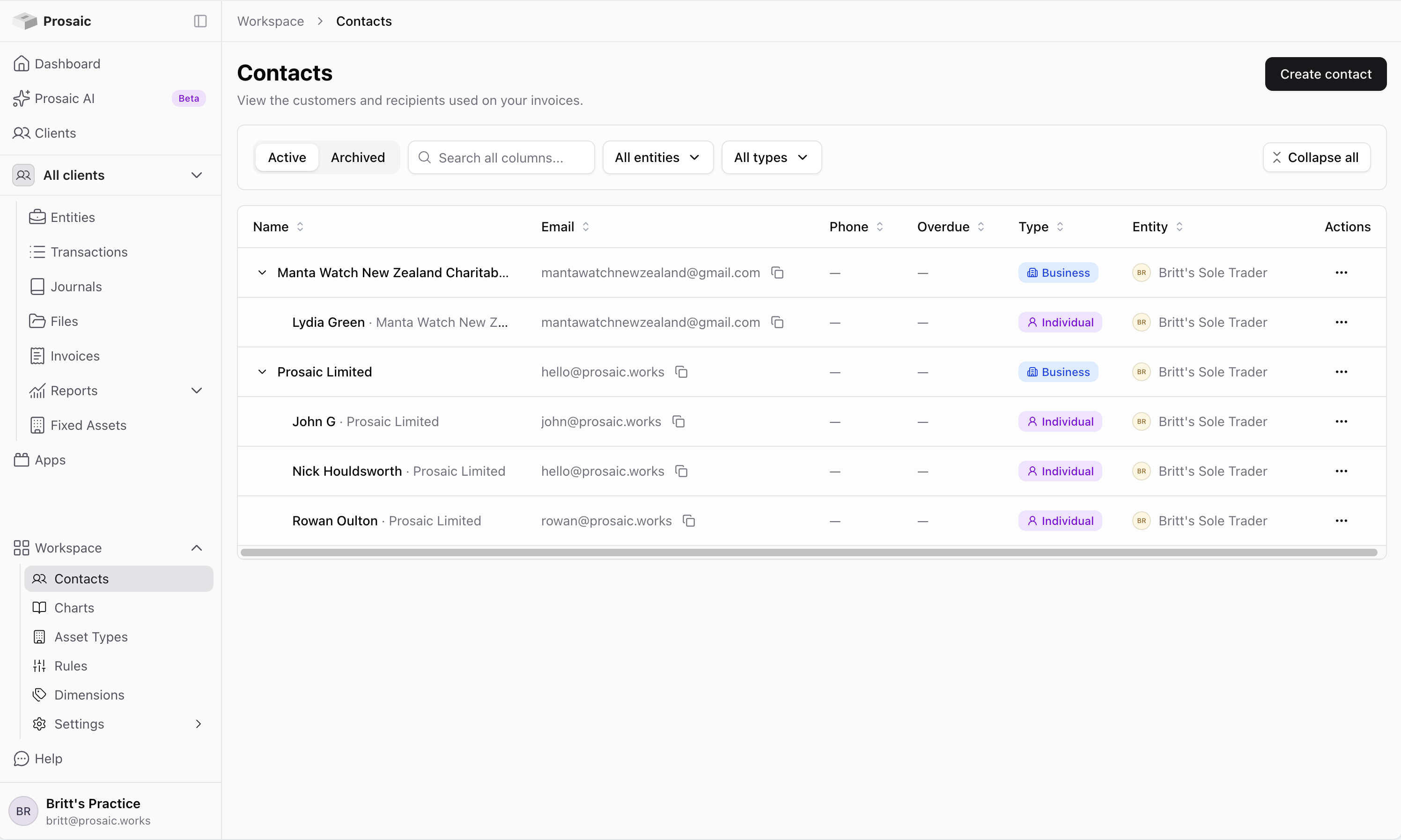
The list shows contacts for the entities in your current view. Each contact belongs to an entity, so the same customer can have separate records for different entities.
Search by name or email, or filter by Type and Entity. Businesses group their people underneath them: select the arrow beside a business to expand it. Searching also finds people inside collapsed businesses.
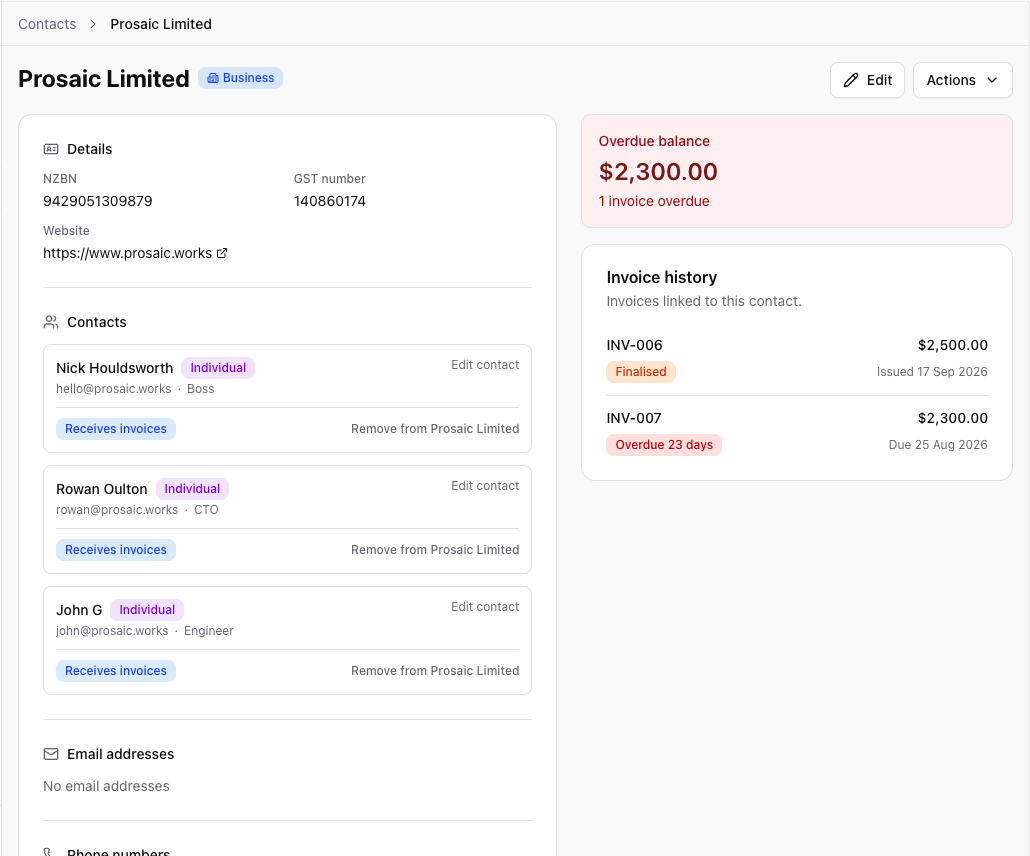
The list includes email, phone and overdue balance. Select a contact to open its details, including its people, addresses, notes and Invoice history. Use the Active and Archived tabs to switch between current contacts and those you have put aside.
Creating and editing a contact
- On the Active tab, select Create contact. Choose the entity the contact belongs to if prompted.
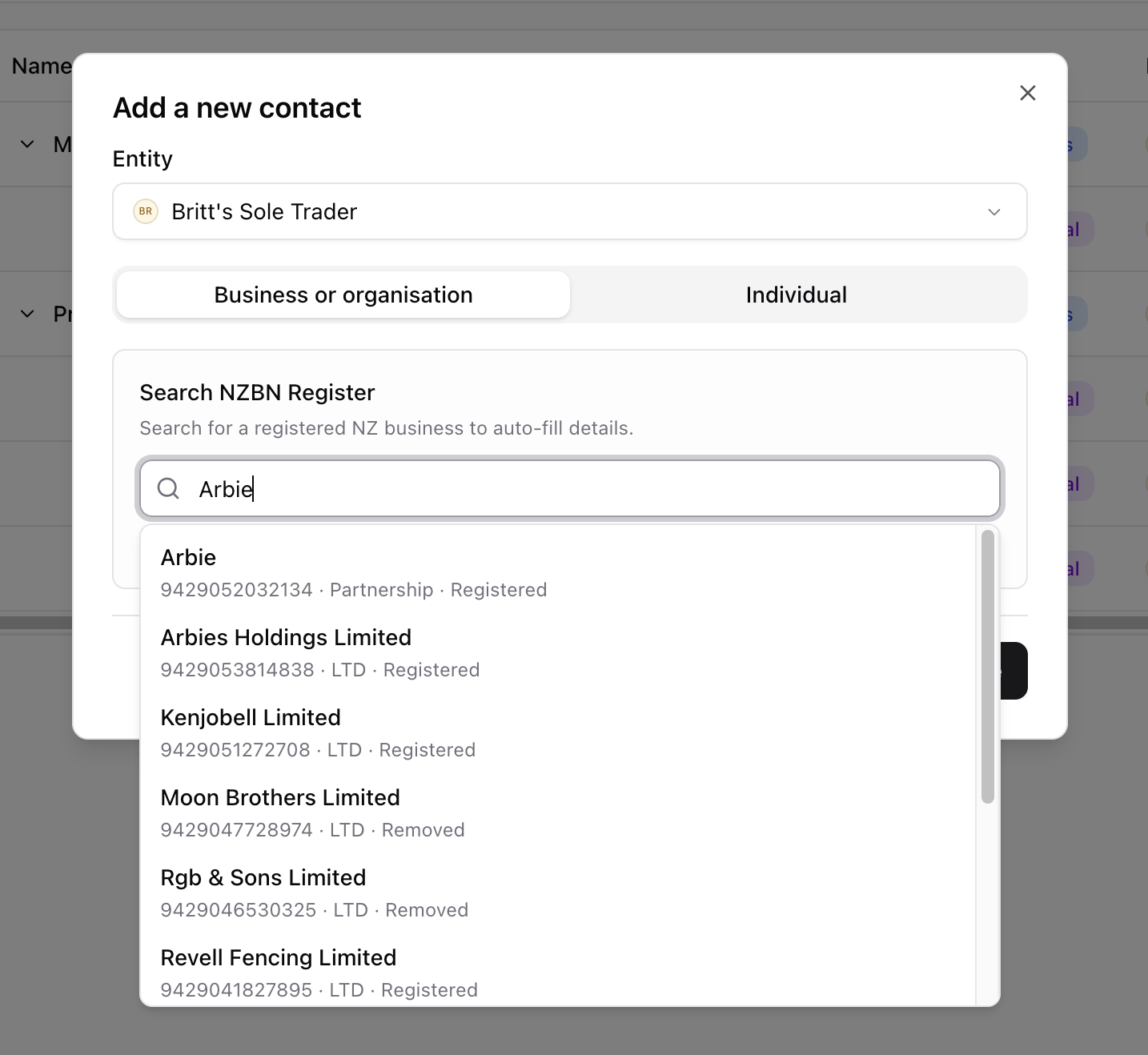
- Choose Business or organisation or Individual.
- For a business, search by business name or NZBN to fill in available registered details. Review those details, or select Enter details manually if the business is not listed. Enter the business name and add at least one contact with an email address. For an individual, enter their full name and email address.
- Add any postal addresses, phone numbers, website or notes you need. Optional fields can be opened using the + Add buttons. If you add several postal addresses, choose one with Use for invoices.
- Select Create.
You can also create a contact while writing an invoice: select Create contact in the invoice's recipient picker. The dialog opens over the invoice so you can continue without leaving it.
To update a saved contact, open it, select Edit, make your changes and select Save changes. The business/individual choice is made when creating the contact and cannot be changed on the edit page.
Invoice notes and internal notes
These two fields have different audiences:
- Invoice notes are customer-facing wording, such as payment instructions or agreed terms. When you choose the contact on a new invoice, Prosaic copies these into the invoice's Notes field if you have not already entered your own wording. You can change the copied text for that invoice.
- Internal notes stay on the contact record for your team. They are not shown on invoices.
Changing either field on the contact does not rewrite invoices you have already saved.
People and invoice recipients
A business's email addresses belong to its people. For example, you can keep an accounts contact and a project contact under the same business, then choose which of them should receive invoices.
On the business's edit page, use the picker in Contacts to find an existing person or create a new one. Each person has their own contact record and one email address. Select their name or Edit contact to change their personal details.
Tick Send invoices to this address for each person who should receive the business's invoices. When you select that business on an invoice, Prosaic fills in those addresses. If nobody is ticked, it uses the first person with an email address. Review the recipients before sending; an invoice supports up to 10 email recipients.
A person can belong to one business at a time. Selecting someone already linked elsewhere asks you to confirm moving them. Removing a person from a business leaves their individual contact record in place. A business must retain at least one contact, so add a replacement before removing or moving its last person.
If an email address already belongs to another active contact for the same entity, use that contact or correct the address on its existing record. Prosaic does not allow two active contacts for that entity to claim the same email address.
Using contacts with invoices
On a new invoice, search the recipient field and select the contact. Prosaic fills in the name, invoice address and recipient emails, plus any invoice notes. Review the details before finalising. You can still enter a recipient directly without saving a contact.
The invoice keeps its own saved recipient details. Editing a contact later does not change an existing invoice's name, address, recipients or notes. Correct the invoice itself when those details need updating. See Editing an issued invoice for the available actions.
Invoice history and overdue balances
Open a contact to see Invoice history. Each linked invoice shows its number, amount, status and date; select it to open the invoice. An Overdue balance appears when linked invoices have been sent, remain unpaid and are past their due date.
History follows the contact linked to each invoice. An invoice addressed to a business appears on the business's record; adding a person under that business does not move those invoices onto the person's record.
Linking earlier invoices
When you enter an email address while creating or editing a contact, Prosaic checks for earlier invoices in the same entity that used that primary recipient email and are not already linked to a contact. If it finds any, the form lists them and asks whether you want to link them.
Review the list and tick the option before saving if those invoices belong to this contact. Linking adds them to the contact's invoice history without changing their saved recipient details or PDFs. Invoices already linked to another contact are not reassigned by this option.
Bulk invoice import also links an invoice when its recipient email matches an active contact for the selected entity. It links to the person's active business where applicable, otherwise to the person. An unmatched email does not create a new contact. See Importing invoices in bulk.
Archiving, restoring and deleting
Archive a contact you no longer use
Open the contact and choose Actions → Archive contact, or use its actions menu in the list. Confirm with Archive. The contact moves to Archived and is no longer offered for new invoices. Its existing invoices and history remain available.
For a business, Also archive its contacts is ticked by default. Untick it to keep its people active as standalone contacts; this removes their link to the archived business. You cannot archive the last active person at a business while leaving that business active; add another person first, or archive the business.

Restore an archived contact
Open Contacts → Archived and select Restore on the row, or open the contact and select Restore contact. For a business, Also restore its contacts restores the people archived with that business. People archived separately stay archived.
Archived contacts are read-only. Restore a contact before editing it or choosing it on a new invoice.
Delete an unused contact
Actions → Delete contact is available on an active contact with no linked invoice history. If a contact has linked invoices, archive it instead. Deleting a business leaves its active people as standalone contacts; it does not delete those people. The last person at an active business cannot be deleted until another contact is added or the relationship is otherwise resolved.
Use archive when you may need the contact again: archived contacts have a Restore action, while deleted contacts do not appear on the Archived tab.