
User Roles & Client Access
This guide explains how user roles and client access work, and how to control who can see and manage each client (entity) in your workspace.
Prosaic uses two layers of permissions:
- Workspace roles – what someone can do across the whole workspace
- Entity access – which specific clients (entities) they can see and what they can do inside each one
You usually use workspace roles to define who someone is (owner, staff, client), and entity access to define which clients they work on.
Workspace roles (what someone can do across your workspace)
Workspace roles control what a person can do at a practice level.
Owner
Best for practice owners.
Owners can:
- See and manage all clients
- Add and remove users
- Change permissions
- Manage billing and workspace settings
There is usually only one Owner per workspace

Admin
Best for practice managers or senior staff.
Admins can:
- See and manage all clients
- Add and remove users
- Grant and remove access to clients
- Manage workspace settings
Admins cannot manage billing.
Advisor
Best for accountants and bookkeepers.
Advisors can:
- Work on the clients they are assigned to
- Create and edit transactions and journals
- Run reports
Advisors:
- Cannot see all clients by default
- Cannot manage users or permissions
- Only see the clients they are given access to
All three workspace roles can also connect their own bank accounts, from My bank accounts in the menu at the bottom left of the sidebar. Those accounts stay private to the person who connected them until they attach one to an entity, at which point everyone with access to that entity can see it. See How to Connect Bank Accounts to Prosaic.
Client
Best for business owners, sole traders.
Currently, Clients are read-only.
Clients can:
- Signup via your practice portal, or be invited into the workspace
- Connect bank accounts
- View their own bank accounts and reports
- Cannot edit or reconcile transactions
- Cannot upload files
Coming soon: Client “Standard” access
We’ll be introducing a new client access level that allows clients to:
- View and reconcile transactions
- Upload files (receipts, documents)
- Stay involved without needing full accounting access
This will make it easier to involve clients in day-to-day workflows while keeping control with your practice.
Entity access (which clients someone can see)
An entity is a ledger set up for a client (company, trust, rental, sole trader, etc). Clients can have multiple entities.
Assigning user access to any given entity determines
- Which clients & entities an advisor practice user can see
- What they can do within each client entity
Owners and Admins automatically have access to all entities.
Advisors and Clients only see the entities they are given access to.

Entity access levels (what someone can do within a clients entities)
Each user can have an access level per entity:
Admin access (per entity)
Can:
- View
- Create
- Edit
- Delete
Used for: practice leads or internal control where needed.

Advisor access (per entity)
Can:
- View
- Create
- Edit
- Cannot delete
Used for: staff accountants and bookkeepers.
Perfect, here’s the updated Client role section rewritten to reflect that Client Standard is now live and clearly distinguish between the two client modes.
You can drop this into your main permissions guide.
Client
Best for business owners and sole traders.
Clients can either:
- Sign up via your practice portal, or
- Be invited directly into the workspace
There are two client access modes.
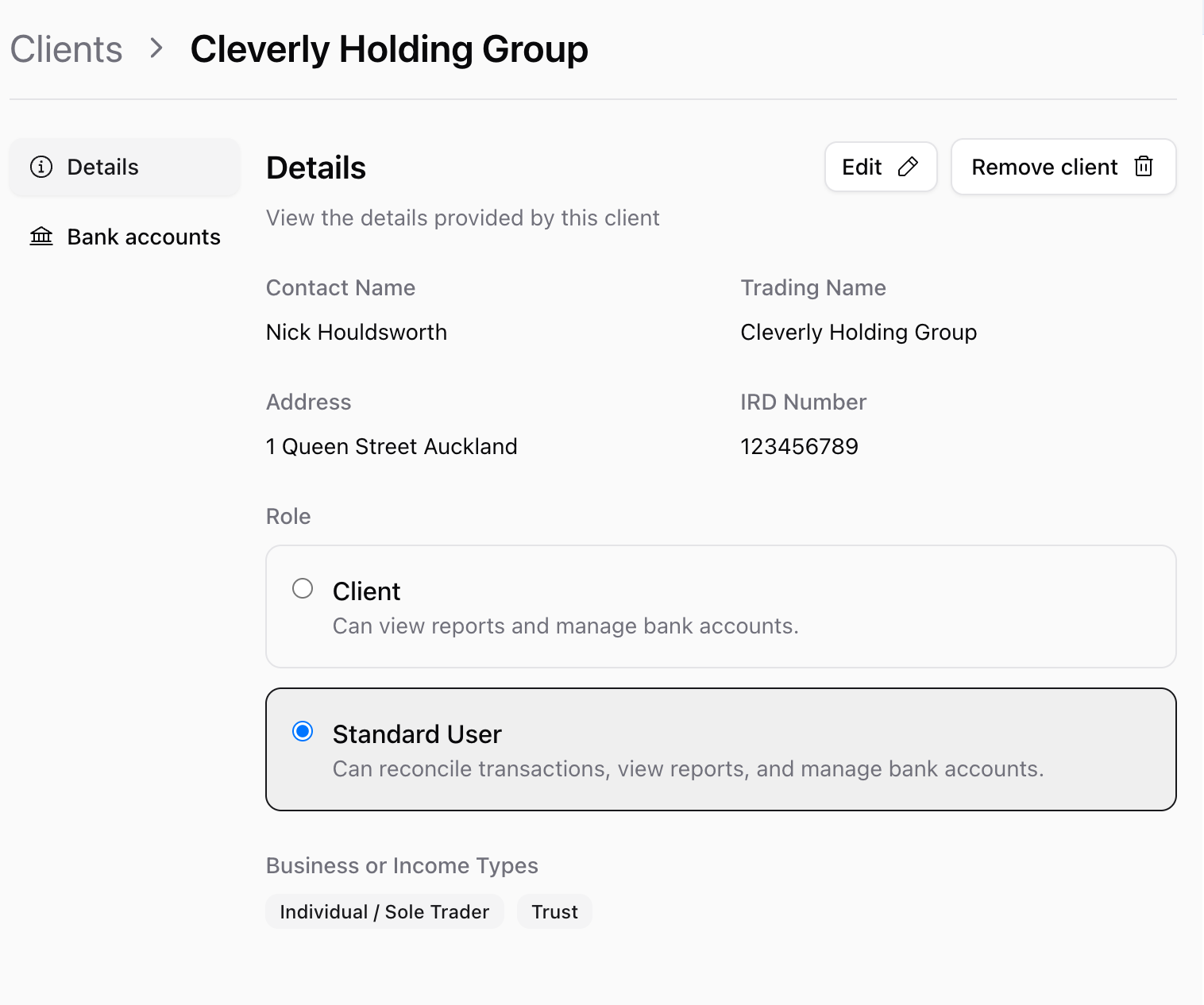
Client
This is the default, read only low-interaction client access.
Client users can:
- Connect bank accounts
- View their own transactions
- View reports
- View/manage their own bank accounts
They cannot:
- Code or edit transactions
- Reconcile transactions
- Upload files
This mode is ideal when you want clients to have visibility without participating in day-to-day bookkeeping.
Standard User
Standard access is designed for collaborative workflows where the client helps keep their books up to date.
Standard Clients can:
- Connect bank accounts
- View transactions
- Code transactions
- Reconcile transactions
- View reports
- View and upload files (receipts and documents)
This mode allows clients to stay involved in their bookkeeping without giving them full Advisor access.
It’s particularly useful for:
- Sole traders who manage their own coding
- Business owners who reconcile regularly
- Clients who upload receipts and supporting documents
Your practice still retains overall control through Advisor and Admin roles.
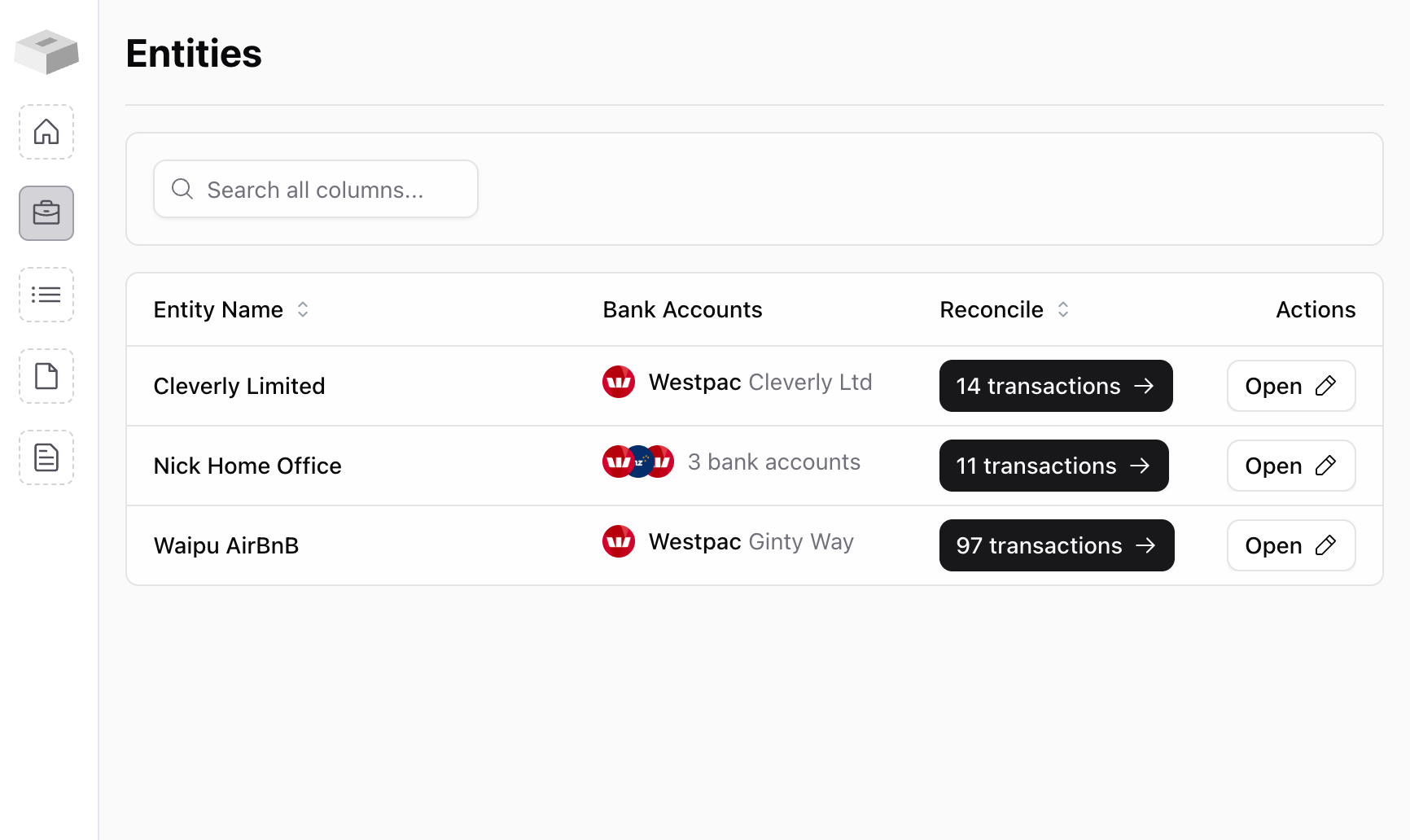
Choosing the right client mode
Use Client when:
- The client only needs visibility
- You want to prevent accidental changes
Use Standard when:
- The client actively codes or reconciles
- You want them uploading receipts directly
- You’re collaborating on day-to-day bookkeeping
How access is usually set up in practice
Small practice
- Owner: practice principal
- Admin: senior staff
- Advisor: accountant/bookkeeper
- Client: business owner
Larger practice
- Admins see all clients
- Advisors only see their assigned clients
- Clients only see their own business
This keeps client data private and limits what each person can access.
Adding users
Only Owners and Admins can add users.
When you invite someone:
- You choose their workspace role
- This controls what they can do overall
After adding them:
- You grant them access to specific clients (entities)
- This controls which clients they can actually see
Granting and removing access to clients
Owners and Admins can:
- Grant a user access to a specific client
- Remove a user’s access
- Control whether someone can view, edit, or manage data for that client
Access changes take effect immediately.
If an Advisor has no client access, they won’t see any clients at all.
Important rules and behaviours
- Owners and Admins always see everything
- Advisors only see the clients they’re assigned to
- Clients only see their own business
- Clients are read-only for now
- Only Owners and Admins can manage access
- Removing access hides the client immediately
- Users can have different access to different clients
Best practice tips
- Give the minimum access needed
- Only make someone an Admin if they manage people or permissions
- Keep client access limited to their own entity
- Regularly review which staff can see which clients
- Use upcoming Client Standard access for clients who want to help reconcile and upload documents
What’s coming next
We’re rolling out:
- More granular client permissions
- More control over what Advisors can do per client
This will make it easier to collaborate with clients while keeping clean separation between staff, clients, and internal data.