How do I delete bank statements or transactions
You can remove both entire bank statements (for manually imported files) and individual statement lines (transactions) in Prosaic. Deleted lines aren’t permanent and can be restored at any time.
Delete individual statement lines (transactions)
You can delete single lines or bulk delete multiple lines from:
- Bank feeds (Open Banking)
- Manually imported statements
Delete a single line:
- Go to the bank account
- Hover over the transaction
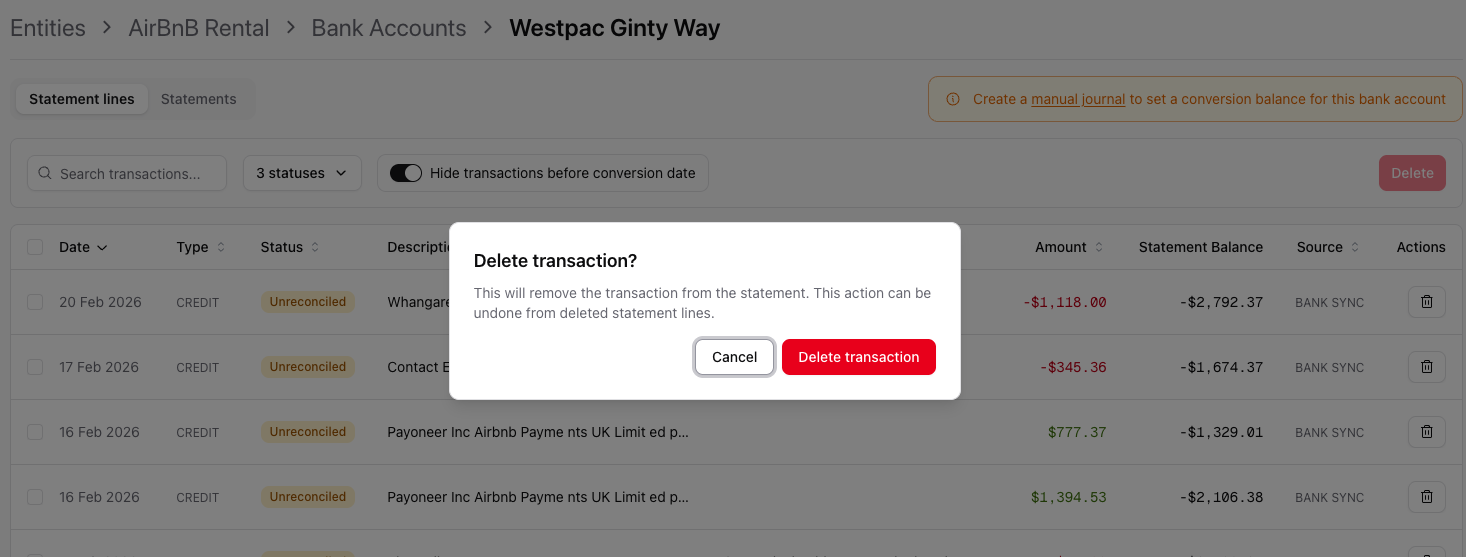
- Click the Delete icon
- Confirm the deletion
Bulk delete multiple lines:
- Tick the checkboxes next to the lines you want to remove
- Click Delete
- Confirm the action
Delete a bank statement (manual imports only)
You can delete a whole statement only if it was manually imported (for example, a CSV upload).
Deleting statements should only be used to fix:
- Import errors
- Duplicate statement uploads
How to delete a statement:
- Go to Entities → [Entity] → Bank accounts → [Bank account]
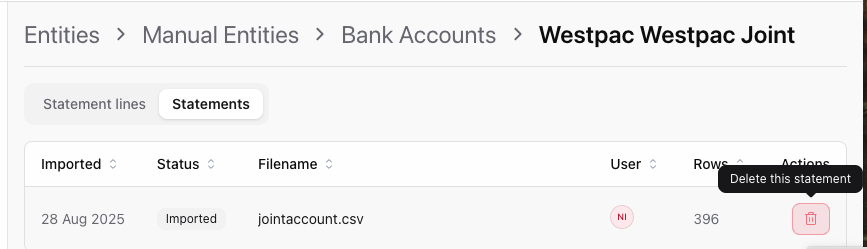
- Open the Statements tab
- Find the imported statement (e.g.
jointaccount.csv) - Click the Delete icon next to the statement
- Confirm the deletion
This removes the entire statement and all its lines from the bank account.
Bank-synced statements can’t be deleted as a whole — only individual lines can be removed.
Deleted lines aren’t permanent
When you delete a statement line:
- It is hidden from normal view
- It is not permanently removed
- It can be restored later
This allows you to clean up transactions without losing data permanently.
View and restore deleted lines
To see deleted transactions:
- Open the bank account
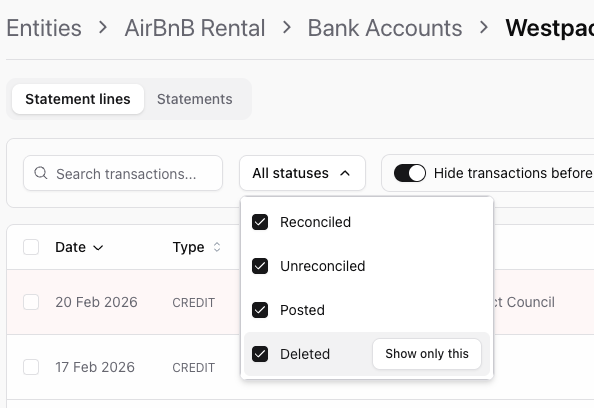
- Open the Status filter
- Tick Deleted
- (Optional) Click Show only this
To restore a deleted line:
- Click the Restore icon next to the transaction
- The line will re-added to your normal transaction list