
Manual Journals
Manual journals are how you post entries that don't come from a bank feed: opening balances, year-end adjustments, accruals, depreciation you're posting yourself, and corrections. Prosaic posts most entries for you from bank reconciliation, so a manual journal is the tool for everything else.
In this article
- Creating a journal
- GST and tax rates
- Importing journal lines
- Importing several journals at once
- Draft, posted and voided
- Editing, reversing and duplicating
- Attachments and comments
- Finding journals
- Opening balances
Creating a journal
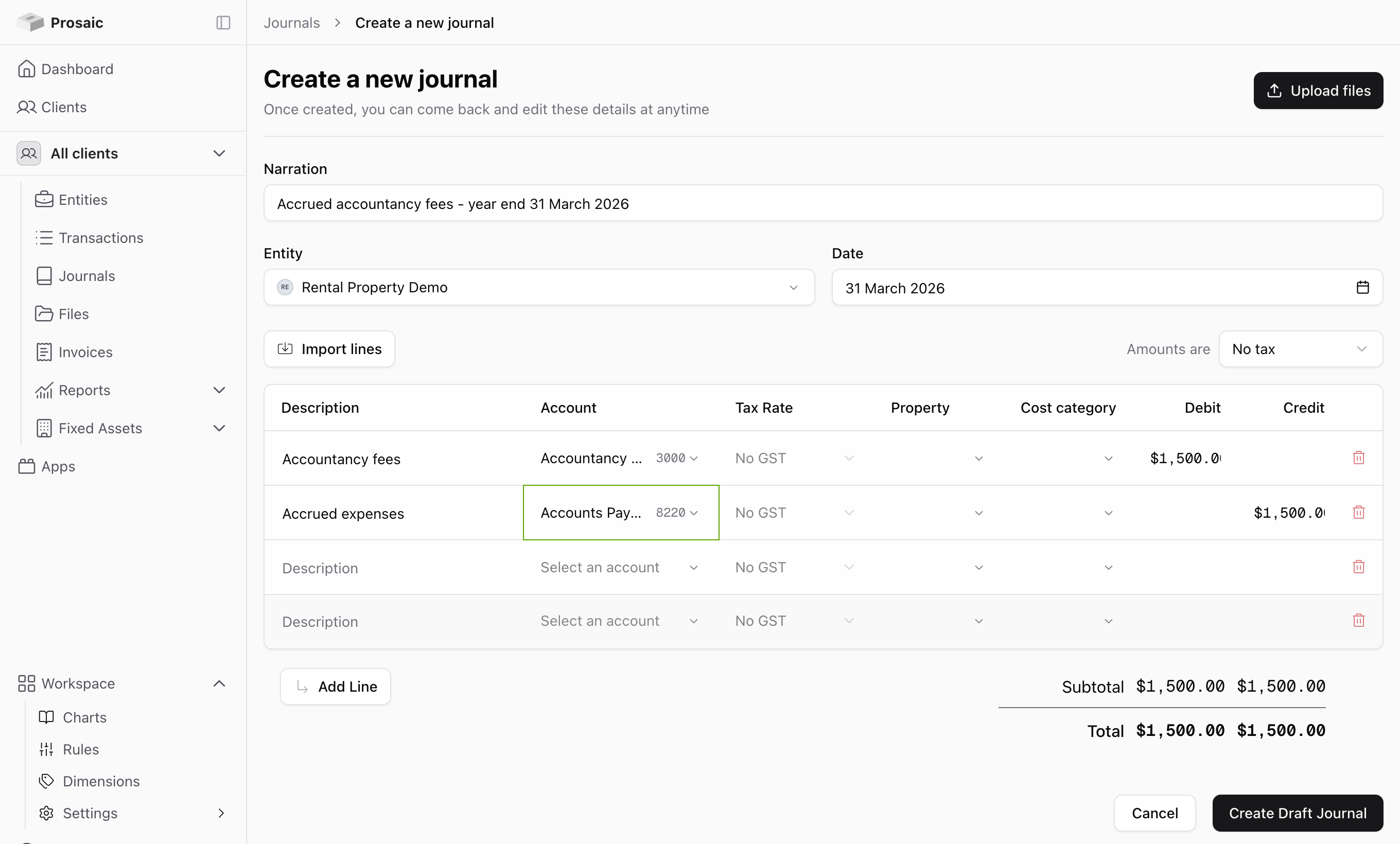
Go to Journals and select New Journal. A journal has a header and a set of lines.
In the header, write a Narration explaining what the journal is for, choose the Entity, and set the Date the entry should post on. The narration is what you and your colleagues will see in the ledger later, so it's worth writing properly.
Each line takes:
- Description for the individual line.
- Account from the entity's chart of accounts.
- Tax Rate, which defaults from the account.
- Debit or Credit.
If the entity has dimensions turned on, a column appears for each active dimension between Tax Rate and Debit.
The journal has to balance before you can post it. Prosaic subtotals debits and credits as you type, so an entry that doesn't balance is obvious before you save. Select Create Draft Journal when you're done.
GST and tax rates
Use the Amounts are selector above the lines to set the journal to No tax, Tax inclusive or Tax exclusive. This decides how Prosaic reads the amounts you enter. Year-end adjustments are usually No tax.
When a line carries a tax rate, Prosaic works out the GST and posts it to the GST account for you. You don't add a GST line yourself. The totals at the bottom show the GST and the total including GST, so you can check the entry against your source document before posting.
Take care with the tax rate on year-end adjustments. Accruals and provisions usually have no GST, and leaving a default rate in place will pull the journal into a GST return where it doesn't belong.
Importing journal lines
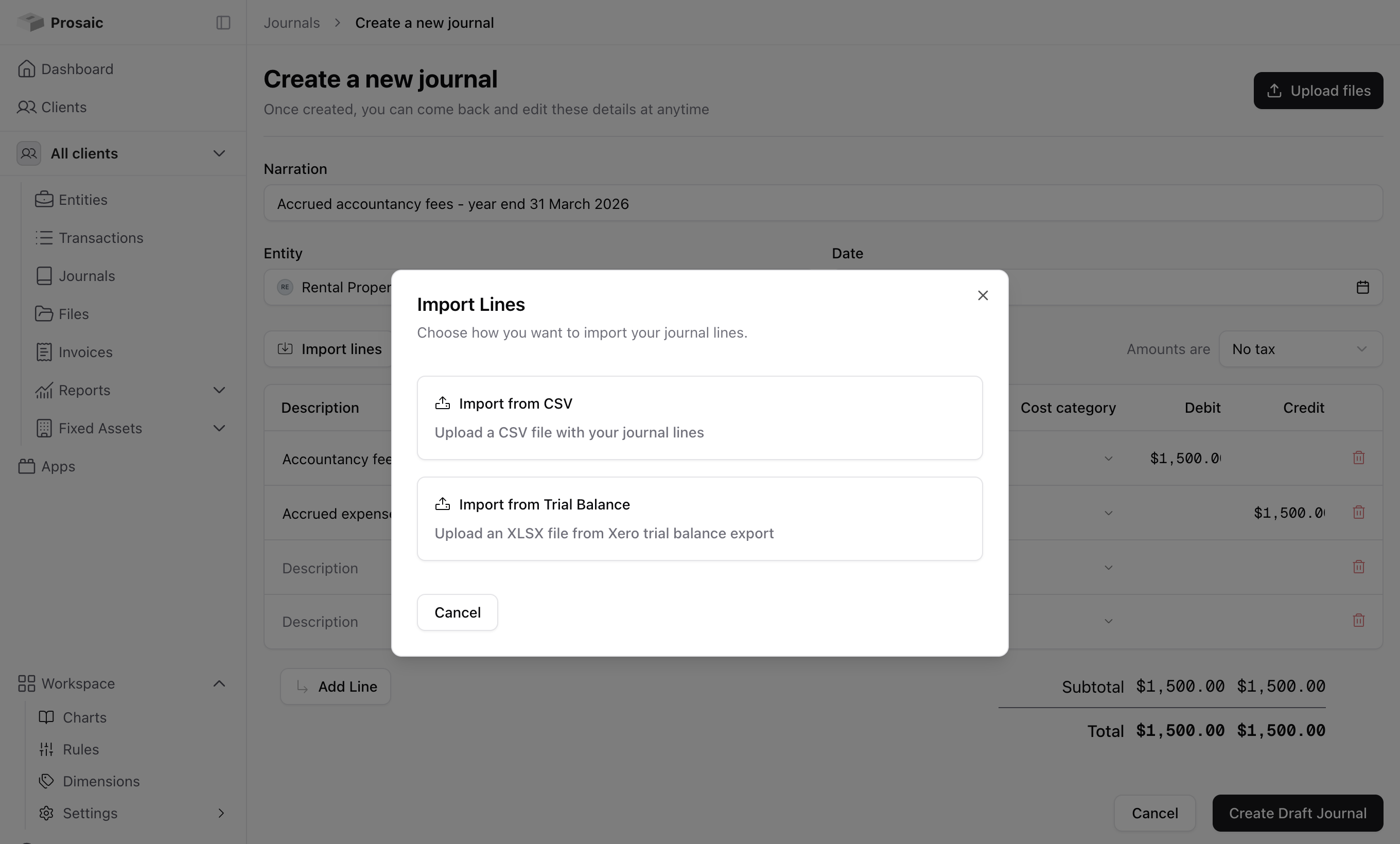
For a journal with a lot of lines, use Import lines rather than typing them. There are two ways in:
- Import from CSV, with the columns
Description,Account Code,Tax Rate,Credit,Debit. Select Download Template in the dialog if you'd like a file to start from. - Import from Trial Balance, using an XLSX trial balance.
Either way, Prosaic matches each row to an account by code. Tick Use mapped codes from the account template if the codes in your file are the external system's codes rather than Prosaic's, and Prosaic will match on the mapped codes in the chart template instead. That's the usual setting when you're bringing a trial balance across from another ledger.
Review the matched lines before importing. Anything Prosaic couldn't match is flagged so you can fix it.
Importing dimensions
If the entity has dimensions turned on, a CSV can tag each line with them. Add a pair of columns for each dimension you want to set: DimensionName1 and DimensionOption1 , then DimensionName2 and DimensionOption2 , and so on, up to the number of active dimensions Prosaic allows. In the name column, put the dimension (for example Property), and in the option column, put the option for that line (for example 12 Smith Street). Names are matched without worrying about capital letters.
The template you download from the dialog already includes these columns, filled in with the entity's own dimensions when it has some, so it's the easiest way to see the format.
If a dimension or option in your file doesn't exist on the entity, the line still imports but is left untagged for that dimension, and Prosaic warns you before you import. Check the warning, because a required dimension that is left blank can stop the journal being posted.
Importing several journals at once
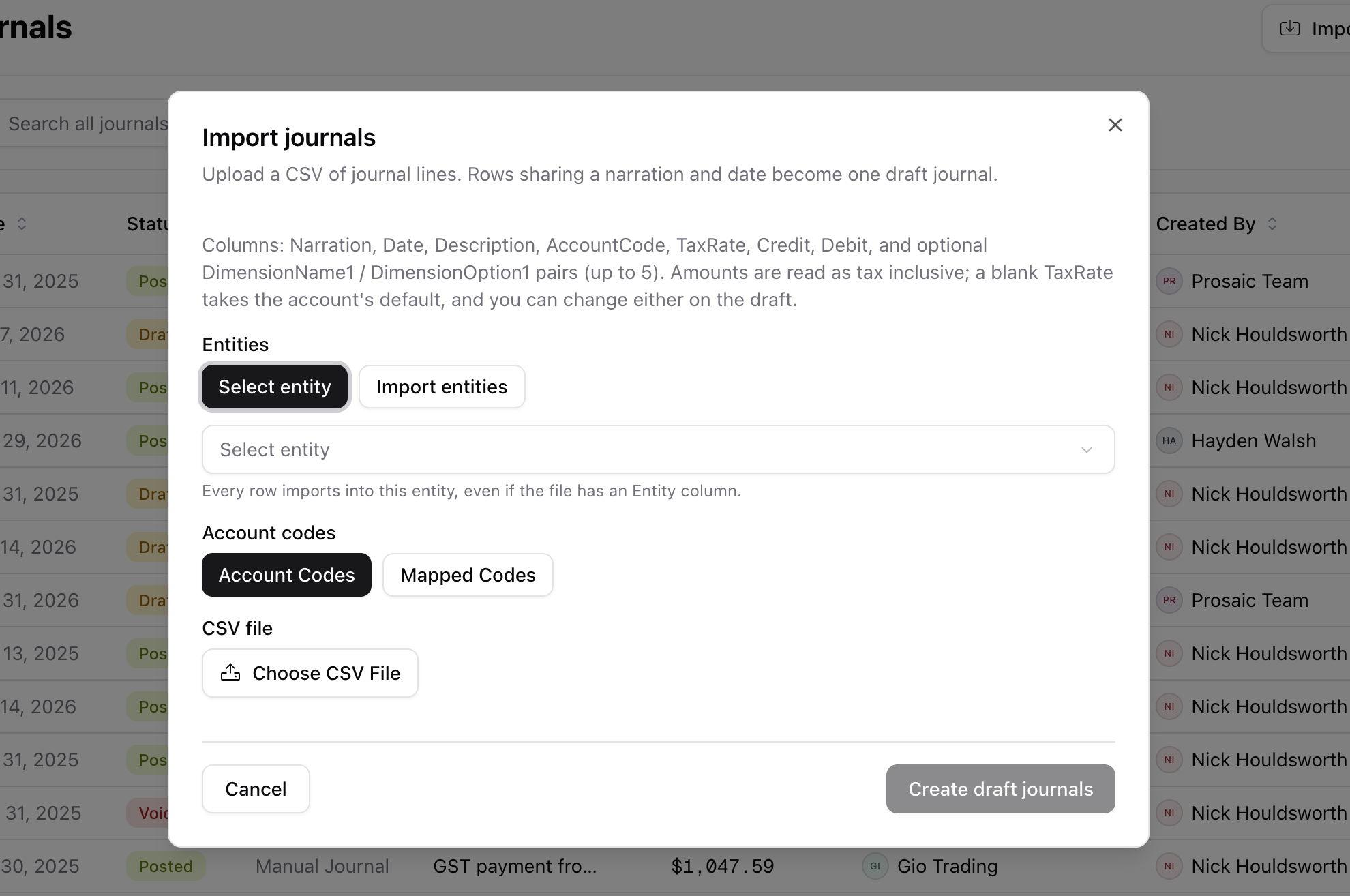
If you have a batch of journals to bring in, such as a month of payroll or accrual journals from a spreadsheet, you don't need to open each one. Go to Journals and select Import journals. Prosaic creates a draft journal for each one in the file, so you can review them before anything reaches the ledger.
The file is a CSV with the columns Narration , Date , Description , AccountCode , TaxRate , Credit and Debit , plus the optional dimension columns described above. Each row is one journal line. Rows that share a narration and date become one journal, so repeat the narration and date on every line of the same journal.
In the dialog, choose:
- Select entity to import every row into one entity. This applies even if your file has an
Entitycolumn, so you can reuse a file for a different entity without editing it. - Import entities to read the entity from an
Entitycolumn on each row, so one file can create journals across several entities. The entity names have to match entities you have access to. - Account Codes or Mapped Codes, depending on whether the codes in your file are Prosaic's or an external system's.
Once you choose a file, Prosaic shows a preview with each journal's narration, date, entity, number of lines and debit and credit totals. Select Create N draft journals to import them. Amounts are read as tax inclusive and a blank tax rate takes the account's default. You can change either on the draft before you post it.
Prosaic checks the file before it creates anything:
- Fix these before importing lists problems that stop the import, such as an account code, tax rate or entity that doesn't exist, or a row with no narration or date. Nothing is created until they're fixed.
- Worth checking lists things that won't stop the import, such as dimension tags that didn't match, or a journal that doesn't balance. Drafts are allowed to be out of balance, but you'll need to fix it before posting.
If some journals fail to save, Prosaic lists which ones under Some journals were not created. The others are already saved as drafts, and trying again only creates the ones that are missing, so you won't get duplicates.
Draft, posted and voided
A journal is in one of three states:
- Draft: saved but not in the ledger. Nothing shows in reports yet, and you can change anything.
- Posted: in the ledger and showing in reports.
- Voided: reversed out and no longer affecting the ledger, but kept on record.
Save a journal as a draft while you're still working on it. When you're happy with it, open the journal and choose Actions → Post. Voiding rather than deleting is deliberate: the entry stays visible for audit.
Editing, reversing and duplicating
A draft journal can be edited freely. A posted journal can also be edited, and Prosaic keeps a version history so you can see what the entry looked like before the change and who made it.
You can also:
- Reverse a journal, which posts an opposite entry. This is the right tool for reversing an accrual in the following period.
- Duplicate a journal, which copies it as a new draft. Useful for entries you post every month.
- Void a journal that shouldn't have been posted at all.
Attachments and comments
You can attach files to a journal, so the calculation or the source document sits with the entry rather than in a separate workpaper. Journals also carry comments, which is the place to leave a note for whoever reviews the entry, or to ask a colleague a question about it.
Finding journals
The Journals list can be filtered by entity, by status (Draft, Posted, Voided) and by source:
- Manual Journal: entries you've posted yourself.
- Bank Rec: entries Prosaic posted from reconciliation.
- Depreciation: entries from a depreciation run.
- System: entries Prosaic created, such as historical imports.
- Reversal: entries created by reversing another journal.
Filtering to Manual Journal is the quickest way to review everything your team has posted by hand in a period.
Opening balances
Opening balances are entered as a manual journal. If you're bringing an entity into Prosaic part-way through a year, post a journal dated at the conversion date with the balances from your previous system.
For the detail on how this interacts with conversion dates and statement balances, see Bank Accounts – Opening Balance, Conversion Dates and Statement Balance.
Need help?
If a journal isn't behaving the way you expect, use the 💬 button in the app or email help@prosaic.works.