
GST Returns
Prosaic drafts a GST return for each of your entities for every reporting period, populates the figures from reconciled transactions, and — once you finalise and file — tracks the return through to settlement with IRD. This article covers the full life of a return: setting up an entity, finding it on the GST Returns page, working inside the return itself, and filing.
- Setting Up Returns
- List View
- Board View
- Workflow
- The GST Report
- Late Claims
- File with IRD
- Sharing reports
Setting up GST for an entity
Open the entity from the client list, and switch GST Registered on. A panel appears with three fields:
- GST Number — the entity's IRD number
- GST Period — 1 / 2 / 6 monthly
- Start GST Returns From — the first period you want Prosaic to draft from. Pick a date that aligns with the entity's IRD filing calendar
A fourth control, Automate GST return creation, flips on automatically when you mark the entity GST-registered. Leave it on and Prosaic will draft each return as its period closes; switch it off if you'd rather drive return creation yourself.

Changing these later
Edit the entity any time to update the number, period, start date, or automation toggle. Changes to GST Period only affect returns drafted after the change — existing drafts keep the period they were created with, so delete or finalise them if the boundaries no longer make sense. Switching automation off leaves existing returns in place; switching GST Registered off entirely will also turn automation off.
Finding your returns
Reports → GST Returns lists every return across every entity you have access to. In the top right of the page you'll find a view toggle with two options — List and Board. Your choice is remembered per workspace, and the search, status, due date, frequency, and entity filters above the toggle carry across both views.
The list view

A row per return with columns for Period, Status, Entity Name, Reconciled (a tick or a click-through to bank rec if there are transactions still to reconcile in the period), Due Date, Frequency, and Net GST. Click a row to open the return.
The board view (accountants only)

The board organises returns across columns that mirror the lifecycle of a return:
- Draft — being prepared. Reconcile the period's transactions and review the figures before finalising
- Finalised — figures are locked in and the return is ready to file
- Filed — submitted to IRD and waiting on a response, or recorded as filed outside Prosaic. Rejected returns sit at the top of this column so they don't get missed
- Awaiting payment — accepted by IRD and the entity owes money. Prosaic checks the IRD balance at 7 am and 1 pm New Zealand time and moves returns into this column automatically once the assessment is confirmed
- Completed — the return is done. Refunds, nil returns, and accepted returns with nothing left to pay all land here automatically once IRD confirms; you can also mark a return as complete by hand at any time
Within each column, returns are ordered to surface what needs attention. Draft and Finalised put the most overdue returns first, followed by the closest due dates. Filed pulls rejected returns to the top.
If you haven't connected IRD filing yet
The board still works — you just won't see the IRD-driven automation. The Awaiting payment column is replaced by a panel inviting you to set up the connection. Filed stays as a normal column so returns you've filed outside Prosaic still have somewhere to live.

Moving returns through the workflow
You can finalise, file, mark as complete from the rMost steps in the workflow are a drag and a drop. Grab a card anywhere on its body and drop it into the column you want to move it to. Click without dragging to open the return.
The moves you can make are:
- Draft → Finalised — finalises the return. If there are unreconciled transactions in the period, you'll be asked to confirm
- Finalised → Draft — reopens for editing
- Finalised → Filed — files the return. If you're connected to IRD you'll see a short confirmation of entity, period and net GST before submitting. From that same dialog you can choose Mark as filed externally instead if you filed this one outside Prosaic. If you're not connected to IRD, dropping into Filed records the return as filed externally
- Finalised → Completed — marks the return done outside the IRD flow
- Filed (externally) → Finalised — undoes an external filing
- Filed (externally) → Completed — wraps an externally-filed return up
- Awaiting payment → Completed — an escape hatch for when the IRD balance lingers; the daily check normally moves these for you
- Completed → Finalised — moves a return back if it was completed by mistake
Cards already accepted by IRD or sitting in Awaiting payment are driven by IRD's responses, so you generally don't need to drag them. Drop a card somewhere it can't go and nothing happens — the card stays put.

Tidying up historic returns

If you've been using Prosaic for a while you'll likely have a stack of older returns sitting in Finalised — filed long ago, but never moved out of the column because the Completed stage didn't exist yet. A Tidy up historic returns? banner sits at the top of Finalised for advisors when there are returns finalised before the Completed stage shipped and now over 30 days past their due date. Tap Review to open a dialog listing every eligible entity and return; everything is selected by default. Untick anything you'd like to leave in Finalised, then Mark X returns as completed to move the rest in one sweep.

Inside a return
Click a card (or list row) to open it. The return has five tabs and an Actions menu in the top right.

Summary
The GST101A form, box by box. In draft you can edit Box 9 (Debit adjustments) and Box 13 (Credit adjustments) directly — the totals in Boxes 10, 14 and 15 update as you type. Click any amount to copy it for myIR, and click the highlighted figures in Boxes 5, 11 and 15 to drop into the General Ledger pre-filtered to the period. Box 15 reads either "GST to pay" or "GST refund" depending on whether you're in debit or credit.
Transactions
Every journal line contributing to the return, grouped by box. Click a transaction to open the underlying journal.
Flagged
Only appears when there are transactions where GST was applied but the account defaults to No GST (or vice versa). These often deserve a second look before finalising — Prosaic surfaces them so you can decide whether the override is intentional.
Unreconciled
Bank statement lines from the period that haven't been reconciled. While these exist, the relevant boxes show as provisional with an orange banner; figures update automatically once you reconcile. The "X to reconcile" button at the top of the return jumps straight to bank rec, pre-filtered to the period and entity.
History
A time-stamped audit trail of everything that's happened to the return — created, finalised, reverted, submitted, accepted, rejected, amended, marked as filed externally, auto-completed by the IRD balance check.
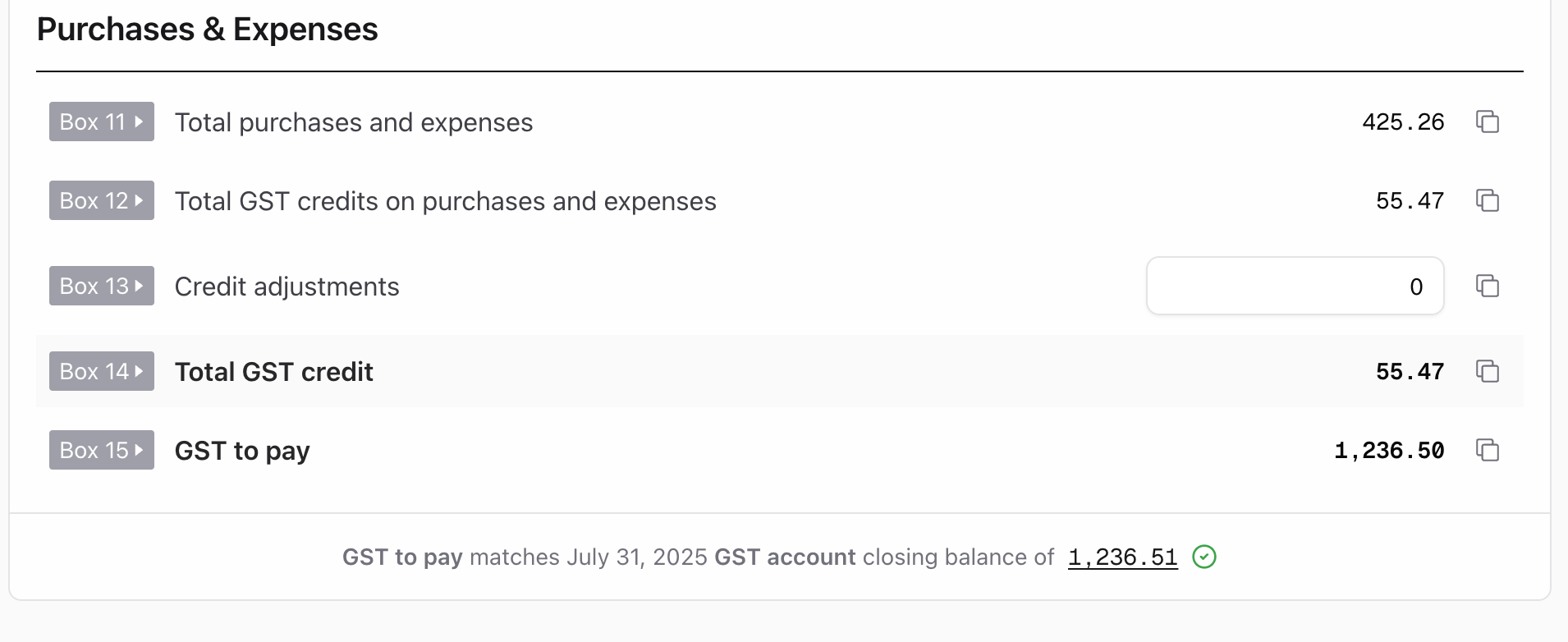
GST returns feature a helpful audit tool, which compares the GST To Pay (or GST Refund) with the closing balance of the GST account in the general ledger, so you can review if debits/credits and transfers to/from IRD for the period match up.
This helpful to see if client GST accounts are up to date, and works alongside account balances we retrieve from IRD directly. Click on the GL balance number to review all GST transactions for the period
When might this not balance?
- If you haven't entered closing balances for the last period (eg when converting from external ledger) then the GL balance will not match the GST report balance
- If you have entered AR or AP journals (Prosaic doesn't not natively support invoices and bills yet, so you'd need to filter out AR/AP accounts from the GL balance
Is this visible to clients?
This is only displayed on the GST return. Its not printed on any PDF or XLS files that you might share with a client
Late claims
If a transaction with GST is dated before the current period started but hasn't been picked up by an earlier finalised return — a bill you reconciled this week that was actually from last quarter, say — Prosaic treats it as a late claim and adds it to the current return automatically. Late claims always land on the oldest unfinalised return for the entity; once you finalise that return, they're considered claimed and won't reappear.
In the Summary, late claims appear as their own row:
- Box 9.2 if the late claim is on the sales side
- Box 12.1 if it's on the purchases side
They roll into Box 9 or Box 13 the way IRD expects. Open the late claims section under Transactions to see which specific journals are involved.
Finalising
Click Finalise in the top right of the return (or drag the card to Finalised on the board). If the period still has unreconciled transactions you'll get a confirmation prompt first — figures may be incomplete. Finalising locks the boxes and posts the GST journal. A purple "Return Finalised" banner appears with the net position and a Revert to draft button if you need to keep editing.
Filing with IRD
Filing from a return needs a myIR connection. Set that up under Settings → Integrations. For balances, reconnecting, and who can authorise access, see Inland Revenue and Prosaic.
From a finalised return, choose File with IRD and confirm. The status shows Filed while Prosaic waits for IRD's response, then Accepted by IRD or Rejected by IRD with the reason. Once IRD provides a matching period balance, Prosaic moves the return to Awaiting payment if money is owing, or Completed if the balance is zero or in credit. Completed does not confirm that a refund has reached your bank. See Automatic GST completion for how the balance checks work.
Marking a return as filed outside Prosaic
If you filed through myIR or another system, drag the finalised card into Filed and confirm Mark as filed externally (or use Mark as filed externally from the Actions menu inside the return). The card carries a small "Filed externally" badge so the audit trail is clear. Revert it any time to undo.
If IRD rejects a return
A red callout at the top of the return explains why. Common reasons include an authorisation issue with the IRD delegation, a period that doesn't line up with IRD's records, or a return that's already been filed. Sort the underlying issue, revert to draft, finalise, and file again.
Amending an accepted return
Once a return has been accepted by IRD you can still correct it. Open the return → Actions → Amend. Pick a reason — Incorrect amount, Calculation error, Transposition error, or Other — and describe what's changing. The return reopens as a draft with an "Amendment in progress" banner. Make your edits, finalise, and File amendment with IRD.
Exporting and sharing
Actions → Export offers PDF (mirrors the IRD form), CSV, or Excel. Advisors can also email the return directly to a client from Actions → Share → Share with email.
Before you pick a format, tick the sections you want to include — Summary, Transactions, Audit report, Unreconciled transactions and Comments. Your selection is remembered for next time and applies to whichever format you choose.
[SCREENSHOT: the Export submenu showing the section checkboxes with Comments ticked]
Including comments in an export
With Comments ticked, the questions you’ve raised against individual transactions travel with the export — so a client can answer them without signing in.
- PDF — each transaction is followed by its comment thread and an empty reply box. Clients can type straight into the box in most PDF viewers, or print the page and write in it.
- Excel — a Comments tab at the end of the workbook lists each transaction, the comments on it, and a blank row to reply in.
- CSV — the same list, added to the bottom of the file.
[SCREENSHOT: the PDF Comments page showing a transaction, its thread, and the reply box]
The Excel and CSV exports cover comments raised on transactions. The PDF also includes comments made on the return itself.
Sharing unreconciled transactions
When sharing a report (csv, pdf) both the report summary, reconciled and unreconciled transactions can be shared with a client